
Docs / Connect to Hosts
Add a connection
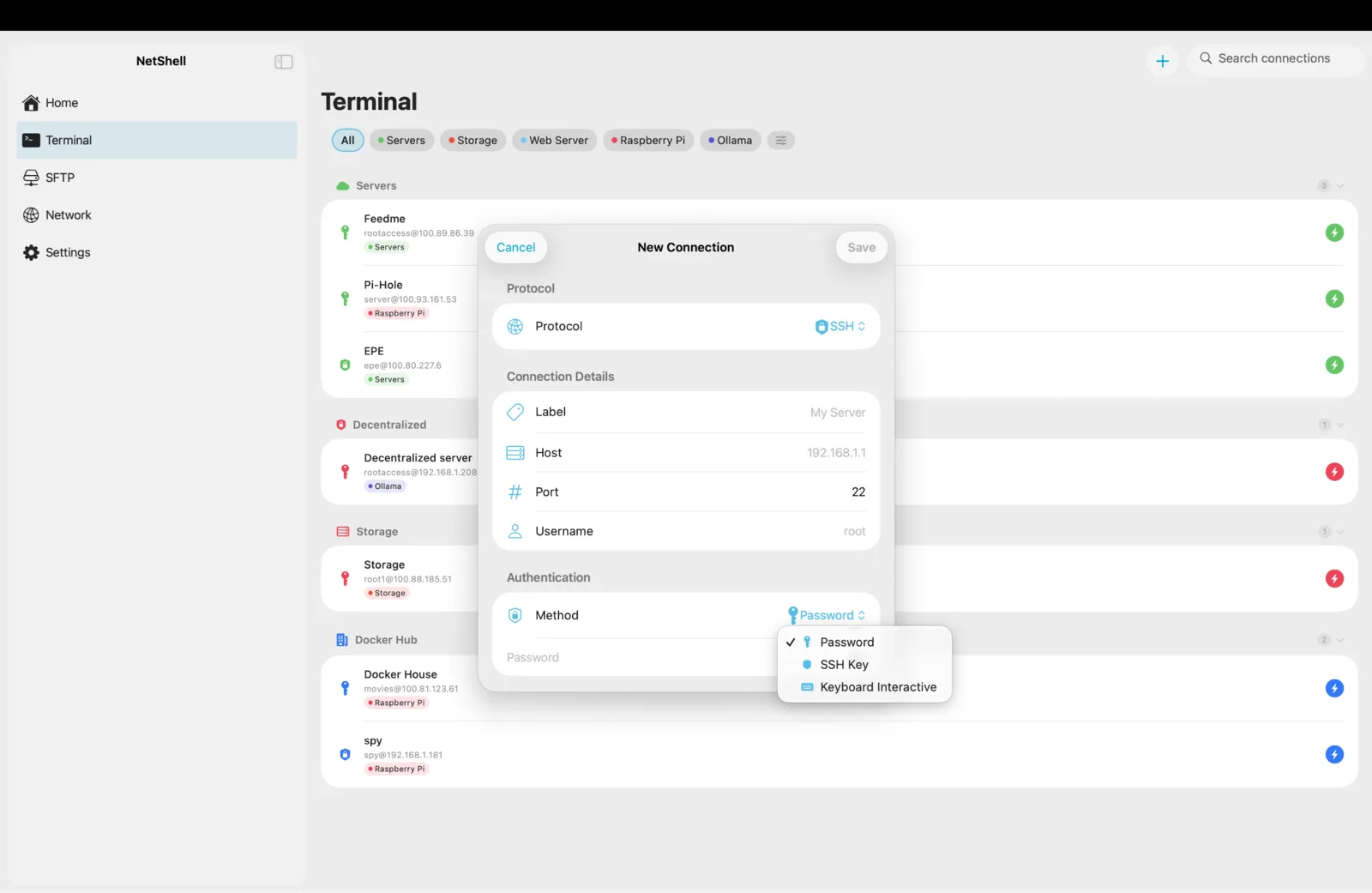
A connection is the saved profile NetShell uses to reach a host — the address, the login, the authentication and every option that shapes the session — so you tap once instead of retyping it every time.
Create a new connection
Open the Connections tab and tap the + button (or New SSH from the home dashboard). NetShell opens a blank form with sensible defaults already filled in. Work top to bottom — only the host and a way to authenticate are strictly required; everything else has a usable default.
- Give the connection a name (optional). A friendly label like Home Server or prod-web-01 makes the list easier to scan. If you leave it blank, NetShell shows the host address instead.
- Enter the host — an IP address (
192.0.2.20) or a hostname (server.example.com). - Set the port. SSH defaults to
22; change it only if your server listens elsewhere. - Enter the username you log in with, such as
rootordeploy. - Choose an authentication method — password or key (covered below).
- Tap Save. The connection appears in your list, ready to launch.
Host, port and username
These three fields tell NetShell where to go and who to log in as. The host can be a bare IP for a device on your network or a fully-qualified domain name for a server on the internet. The port is almost always 22 for SSH; servers hardened against scanning sometimes move it, so match whatever your server is configured for. The username is your account on the remote machine — it has nothing to do with your iPhone, iPad or Mac account.
Authentication: password vs key
Every SSH connection needs to prove who you are. NetShell supports both methods:
- Password — type the account password. NetShell stores it in the hardware-backed iOS Keychain, protected by Face ID, never in plain text. Quick to set up, but a key is stronger.
- Key — pick an SSH key from your Key Vault. The server checks your public key against its
~/.ssh/authorized_keysand no password ever crosses the wire. This is the recommended choice for any host you care about.
To use a key, generate or import one first. The Key Vault can create ed25519 and RSA keys on-device, or import existing OpenSSH-format keys (including encrypted ed25519 and RSA). After importing, add the public half to the server's ~/.ssh/authorized_keys, then select the key on this connection.
The first connection and host verification
The first time you connect to a host, NetShell shows its fingerprint and asks you to approve it — this is trust-on-first-use. Host verification happens at handshake time and fails closed: your credentials are never sent to a host you haven't approved, or to one whose key has changed since you last connected. If a known host's fingerprint suddenly differs, NetShell stops and warns you rather than logging in, because that can signal an impersonating server. Approved host (known-hosts) keys are stored device-locally and, unlike your own keys, do not sync between devices. More detail in Host verification.
Advanced options
Expand the advanced section of the form to fine-tune the connection. None of these are required, but they unlock NetShell's more powerful workflows:
- Jump host — route the connection through a bastion/gateway to reach a server that isn't directly reachable. Pick an existing connection as the hop and NetShell chains through it; multi-hop chaining is supported for deeper paths, and each hop is verified independently. See Jump hosts & multi-hop.
- Agent forwarding — forward your authentication so you can hop onward from the remote host without copying private keys onto it. Enable this only for hosts you trust.
- Terminal theme — assign one of 16 themes per connection, so production and staging look distinct at a glance. Browse them in Terminal themes.
- Monitoring toggles — opt the host into the server dashboard for CPU, memory, disk and uptime, and turn on custom alerts. Details in Server monitoring.
- Group & tags — file the connection into a group or tag it for filtering. See Groups & tags.
Editing a connection
Plans change — a server moves, a port shifts, you switch from a password to a key. To edit, open the connection's detail view and tap Edit (or swipe the row in the list and choose Edit). Change any field and tap Save. Edits take effect on your next session; any session already open keeps running until you close it.
Favorites
Mark the hosts you use most as favorites so they float to the top of the list. Tap the star on a connection's detail view, or swipe its row and choose Favorite. Favorites also surface faster in Siri Shortcuts and on home-screen widgets, so a one-tap launch is never more than a glance away.
Deleting a connection
To remove a connection, swipe its row left and tap Delete, or use Delete from the detail view. Deleting the profile removes the saved settings, and the saved password associated with it is cleared from the Keychain. Deleting a connection on one device propagates the removal to your other devices through iCloud sync. The keys themselves stay in your Key Vault for reuse by other connections.
What happens once you connect
Tapping a saved connection opens a full SSH terminal with multiple concurrent sessions, an SFTP file browser, and port forwarding. A destructive-command guard watches for dangerous input — rm -rf, DROP/TRUNCATE TABLE, git push --force, git reset --hard, shutdown/reboot and more — and asks before it runs. The app also auto-relocks behind Face ID after it sits idle. Learn the basics in Terminal basics.
Bulk import
Already have a fleet of hosts in an OpenSSH ~/.ssh/config? Don't add them one by one — NetShell can import them in a batch. Walk through it in Import hosts.
NetShell is an SSH client for iPhone, iPad & Mac — iOS and iPadOS 17 or later, plus Mac — with no account and no telemetry by default (analytics are opt-in). Download it on the App Store to get started.