
Docs / AI Assistant
On-device Apple Intelligence
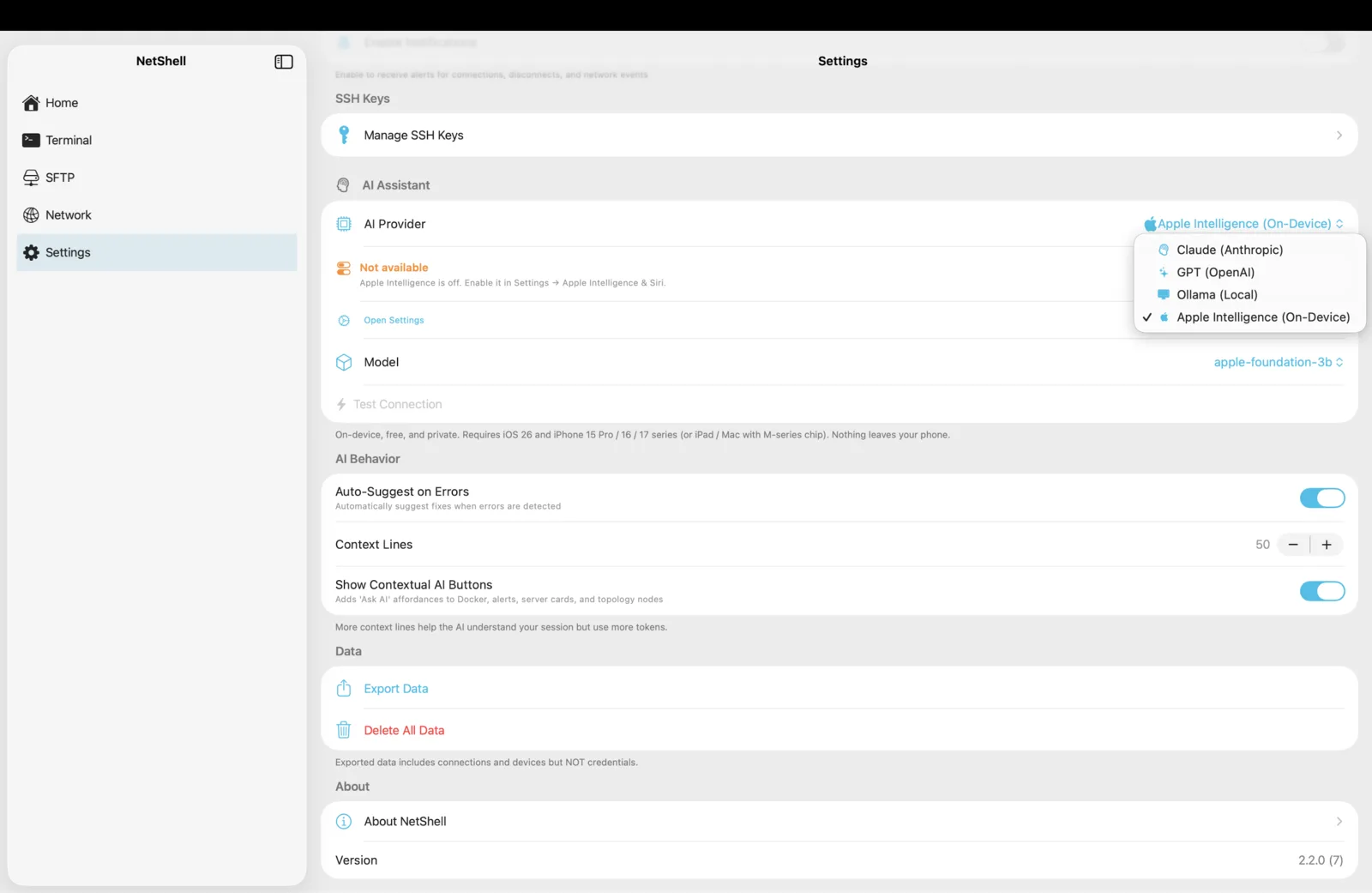
A private assistant that runs on your own device — no account, no API key, no data leaving the phone — to help you read output, draft commands, and understand what's in front of you.
What on-device Apple Intelligence is
NetShell can use Apple Intelligence, the language model built into recent Apple hardware, as its AI assistant. When you choose this option the model runs locally on your iPhone, iPad, or Mac — there is no remote server in the loop, no account to create, and no API bill — it is included in your NetShell subscription. It's the most private way to use AI inside NetShell because your terminal output, command drafts, and questions are processed on the same device you're holding.
This is one of two AI paths in NetShell. The other is bringing your own model — Claude, OpenAI, or a self-hosted Ollama endpoint — covered in Bring your own model. Apple Intelligence is the zero-setup, zero-account default for people who want help without sending anything to a third party.
Requirements
- iOS 26 or later (and the equivalent iPadOS / macOS release) on hardware that supports Apple Intelligence.
- Apple Intelligence enabled in the system Settings for your device.
- No NetShell account, no sign-in, and no API key — that's the point of this option.
If your device doesn't meet these requirements, the on-device option simply won't be available, and you can use a bring-your-own model instead. NetShell remains fully usable as an SSH client with no AI at all.
What it helps with
The assistant is contextual: it works from what's actually on your screen so its suggestions are relevant to the session in front of you. Typical uses include:
- Explaining output. Paste or point it at a wall of log lines, a stack trace, or a config dump and ask what it means.
- Drafting commands. Describe what you want to do and let it propose the command, which you review before running.
- Understanding errors. Turn a cryptic exit message into a plain-English explanation and a likely next step.
- Quick reference. Ask about flags, syntax, or a tool you don't use every day without leaving the terminal.
rm -rf, DROP TABLE, and git push --force regardless of where the text came from.How "on-device" protects your privacy
Because the model runs locally, the content you share with the assistant — session output, the command you're drafting, the question you typed — is processed on your device rather than uploaded to NetShell or any AI vendor. There's no remote prompt log, no account tied to your queries, and no network round-trip required for the model itself.
This fits NetShell's broader stance: the app collects no telemetry by default, and analytics are strictly opt-in. The on-device assistant is consistent with that — using AI here doesn't quietly turn your terminal into someone else's training data.
Enabling it
- Make sure Apple Intelligence is turned on in your device's system Settings (iOS 26+).
- In NetShell, open Settings → AI.
- Choose Apple Intelligence (on-device) as the provider.
- That's it — there's no key to paste and no account to link. Start asking from within a session.
You can switch between the on-device assistant and a bring-your-own model at any time from the same screen, so you're never locked into one choice.
How it relates to the rest of NetShell
The assistant is a helper layered on top of the same secure foundation that powers everything else in the app. Your private keys and passphrases live in the hardware-backed iOS Keychain protected by Face ID; host verification at handshake time fails closed so credentials are never sent to an unknown or changed host. The AI never handles your keys or weakens those protections — it reads context and answers questions, while the security model around your connections stays exactly as described in Encryption & key storage and Host verification.
It also pairs naturally with everyday workflows: ask it to explain what the network scanner found, to help interpret server dashboard metrics, or to draft a command you'll save as a snippet.
On-device vs bring-your-own
Both options give you an in-terminal assistant; the trade-offs are different:
- On-device Apple Intelligence — maximum privacy, no account, no API key, no usage bill, works offline for the model itself. Requires iOS 26+ and supported hardware.
- Bring your own model — connect Claude, OpenAI, or a self-hosted Ollama endpoint when you want a specific or larger model. Your prompts go to whichever provider you choose, under that provider's terms. See Bring your own model.
If you're unsure, start with the on-device option — it needs nothing from you beyond a supported device and a single setting.