
Docs / Key Vault
Generate & import SSH keys
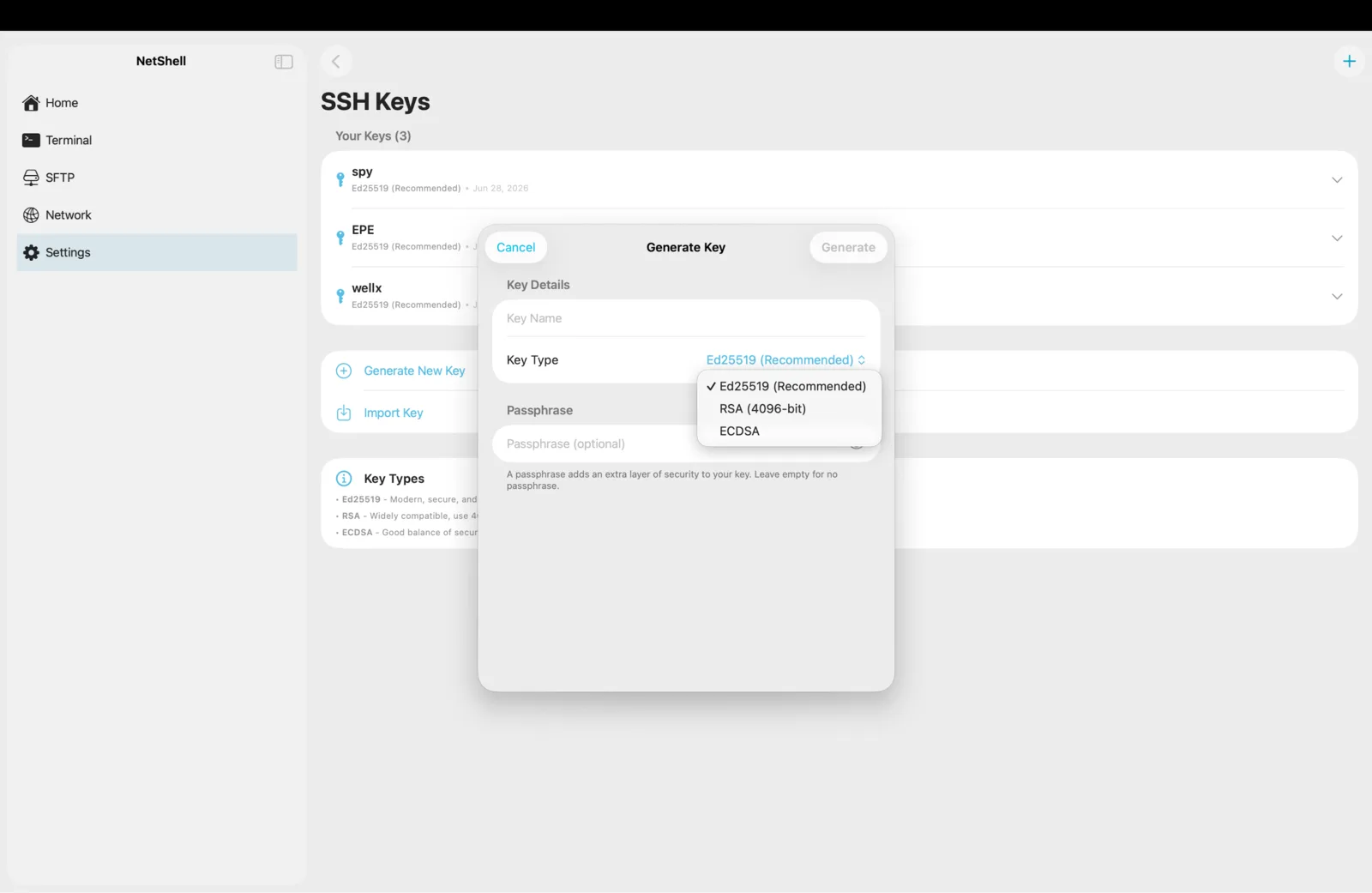
NetShell's Key Vault lets you generate, import, and use SSH keys entirely on your iPhone, iPad & Mac — with private keys held in the hardware-backed iOS Keychain and gated by Face ID.
Why key auth beats passwords
An SSH key pair is two halves: a private key that stays with you and a public key you hand to each server. The server proves you hold the private half without it ever crossing the wire, so there's no password to guess, phish, or leak. Keys are stronger than passwords and let you connect without typing anything once they're set up. NetShell keeps the private half in the Key Vault and only ever sends the public half to a server.
Generate a key on-device
Everything is created locally — no key is ever generated on a NetShell server, because there isn't one in the path.
- Open Settings → SSH Keys and tap Generate.
- Choose a type: ed25519 (recommended — small, fast, modern) or RSA (use 4096-bit for legacy servers that don't accept ed25519).
- Give the key a memorable name so you can pick it out later.
- Optionally set a passphrase. The passphrase is stored alongside the key in the Keychain, so you won't be asked for it on every connect, but it adds a second layer if the key material is ever exported.
- Tap Create. The pair is generated on your device and saved straight into the vault.
Add the public key to a server
To let a server recognise your key, append the public half to that account's ~/.ssh/authorized_keys. In Settings → SSH Keys, tap your key and use Copy public key, then run this once on the server (over an existing password session, or paste it via your hosting console):
mkdir -p ~/.ssh && chmod 700 ~/.ssh
echo "ssh-ed25519 AAAA...your-public-key... you@device" >> ~/.ssh/authorized_keys
chmod 600 ~/.ssh/authorized_keys
From then on, that server accepts your private key — no password prompt. The matching private key never leaves the vault during this step; you only ever paste the public string.
Import an existing OpenSSH key
Already have a key from your Mac, a server, or another tool? Bring it in:
- Open Settings → SSH Keys → Import.
- Paste your private key in OpenSSH format (the text block that opens with the
BEGIN OPENSSH PRIVATE KEYheader line). - Encrypted keys are supported — if the key has a passphrase, enter it so NetShell can unlock and store it. Both encrypted ed25519 and RSA keys are accepted.
- Name the key and save. It lands in the same Keychain-backed vault as a generated key.
Use a key on a connection
Attaching a key to a host is a one-time setup:
- While creating or editing a connection (see Add a connection), set Authentication to SSH key.
- Pick a saved key from the vault.
- Save, then connect. NetShell loads the private key from the Keychain at connect time and hands the server only the proof it needs.
The same key works for the terminal, the SFTP browser, jump-host chains, and port forwarding — set it once per connection.
Where keys actually live
This is the part that matters for security:
- Private keys and passphrases are stored in the hardware-backed iOS Keychain and protected by Face ID. They are not written to disk in the open.
- They sync only via Apple's end-to-end encrypted iCloud Keychain — across your own signed-in devices — and never through a NetShell server. NetShell has no server that can see your keys.
- Host (known-hosts) keys stay device-local and do not sync. Each device builds its own trust record so a change on one device can't silently lower your guard on another.
Because the vault rides Apple's iCloud Keychain, your keys move with you across iPhone, iPad & Mac without you re-importing them — encrypted end-to-end the whole way.
How keys fit NetShell's defences
Key auth pairs with two other layers. Host verification happens at handshake time and fails closed: if a host is unknown or its key changed, NetShell stops before any credential — key or password — is sent, and asks you to approve the new host (trust-on-first-use). The destructive-command guard then watches what you type, intercepting dangerous lines like rm -rf, DROP TABLE, git push --force, and shutdown before they reach the server. And the app auto-relocks behind Face ID after idle, so a key in the vault is no use to someone holding an unlocked-looking phone.
Rotating and removing keys
To rotate a key, generate a fresh pair, add its public half to your servers, switch the affected connections to the new key, then delete the old one from Settings → SSH Keys. Removing a key from the vault removes it from that device; because of iCloud Keychain it also propagates to your other signed-in devices. Remember to delete the retired public key from each server's authorized_keys to fully revoke access.