
Docs / Terminal
16 terminal themes
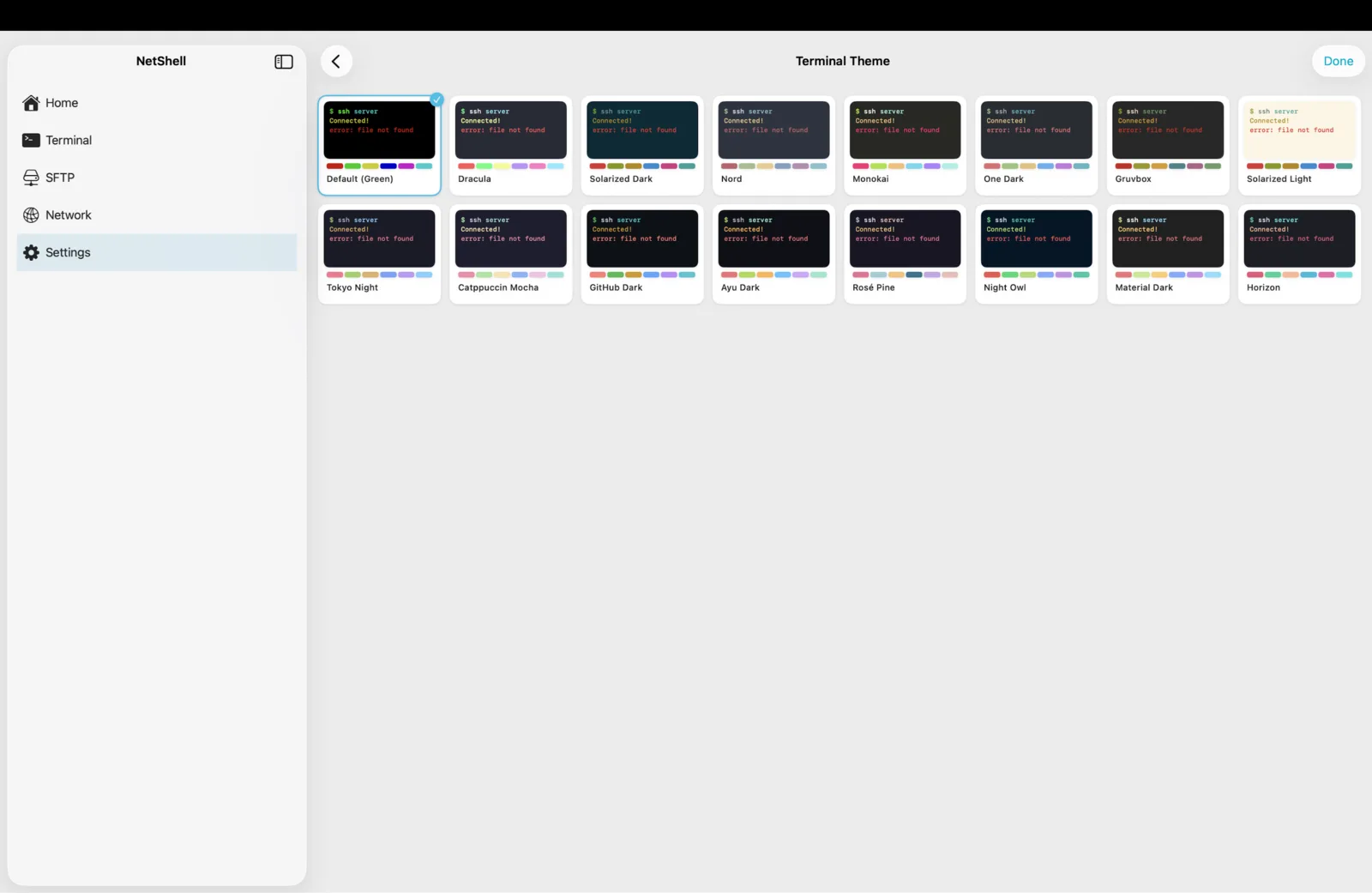
NetShell ships 16 built-in terminal colour schemes — from the classic green-on-black to Dracula, Nord and Solarized — and you can set a different one for every connection so each server is instantly recognisable.
Why themes matter
A terminal theme is more than decoration. The colours decide how readable your output is in bright sun or a dark room, how quickly your eye separates a path from an error, and — when you run several servers at once — how fast you can tell production from a sandbox at a glance. NetShell gives you 16 carefully tuned schemes, each with a full ANSI palette (the 16 colours that tools like ls, git, htop and vim use) plus matched foreground, background and cursor colours. Every scheme is included on iPhone, iPad & Mac — there is nothing extra to unlock.
The 16 themes
The collection spans warm and cool, light and dark, high-contrast and easy-on-the-eyes:
- Default (Green) — the classic phosphor look: bright green text on near-black. High contrast, nostalgic, and very legible.
- Dracula — a dark grey-purple background with vivid pink, cyan and green accents. A long-time favourite for low-light work.
- Solarized Dark — Ethan Schoonover's precision-balanced palette on a deep blue-grey base; muted but distinct.
- Solarized Light — the same palette inverted onto a warm cream background, for bright rooms and daylight.
- Nord — a cool, arctic blue-grey scheme with soft frost-blue accents; gentle contrast that's restful over long sessions.
- Monokai — the bold, saturated editor classic: dark grey background with hot pink, lime and orange.
- One Dark — the Atom-inspired scheme: balanced blues, greens and reds on a calm slate background.
- Gruvbox — a retro, warm palette of muted oranges, yellows and greens on a dark brown-grey; very kind to the eyes.
Alongside these signatures, the set rounds out with further well-known dark and light variants and a couple of high-contrast options, so whatever your editor or desktop already uses, there's a close match. Browse the full list in the picker and try a few — the preview shows real coloured text so you can judge readability before committing.
Setting a global default
Choose your everyday theme once in the terminal settings and every new session inherits it. This is the right place for the look you want most of the time. Changing the default doesn't disturb any per-connection overrides you've already set — those keep winning for the hosts you assigned them to.
Switching per connection
The real power is per-connection theming. Each saved host can carry its own colour scheme, set on the connection itself (see Add a connection):
- Open the connection you want to style and edit it.
- Find the terminal appearance option and choose a theme from the 16.
- Save. From now on, every session to that host opens in that scheme.
A common pattern: give production a calm, distinctive theme (say Nord), staging something warmer (Gruvbox), and your local lab the green default. When you're tired and moving fast, the background colour alone tells you which world you're in — a simple, effective guard against running the wrong command on the wrong box. It pairs naturally with groups and tags for organising fleets of servers.
Readability and contrast tips
Colour choice is half the battle; the rest is matching it to your eyes and surroundings:
- Bright daylight or outdoors — reach for a light theme like Solarized Light. Dark-on-light stays readable when the sun washes out a dark screen.
- Low light or night — dark themes (Dracula, Nord, One Dark) cut glare and eye strain.
- Long sessions — lower-contrast palettes such as Nord, Gruvbox and Solarized are designed to be comfortable for hours; the punchy ones (Monokai, the green default) are sharper but more tiring over time.
- Pair theme with font size — a smaller font fits more columns for wide tables and
diffoutput; pinch-to-zoom adjusts any session on the fly. See Terminal basics. - Check your tools' own colours — many CLIs let you tune their output. If
lsorgitlooks washed out, it's usually the tool's own colour config interacting with the palette, not the theme itself.
How themes interact with the rest of the terminal
Themes are purely a display choice — they change nothing on the server and never touch your data. The same colour scheme applies whether you connect directly or chain through a bastion with jump hosts, and it follows the connection across your synced devices. Open the same host on iPhone, iPad and Mac and it looks the same everywhere.
Because each theme provides the full 16-colour ANSI palette, full-screen tools render correctly: tmux status lines, vim syntax highlighting, htop meters and coloured git diff all map onto your chosen scheme rather than falling back to defaults.
A quick way to compare
To see a theme exercise its whole palette at once, run something colourful in a session and flip between schemes:
# show all 16 ANSI colours
for i in $(seq 0 15); do printf '\033[48;5;%sm  %2s  \033[0m' "$i" "$i"; done; echo

# real-world colour: a coloured diff
git -c color.ui=always diff | head -40
Watch how each scheme handles the reds and greens of a diff and the blues of directory listings — that's where readability differences show up most.
Privacy note
Like everything in NetShell, your theme choices are yours alone. The app has no telemetry on by default (analytics are strictly opt-in), so your appearance settings — and which servers you've styled how — never leave your devices except through Apple's own end-to-end encrypted iCloud. NetShell is an SSH client for iPhone, iPad & Mac with no account and no telemetry by default. Grab it on the App Store and read more in Privacy & telemetry.