
Docs / Connect to Hosts
Snippets & sequences
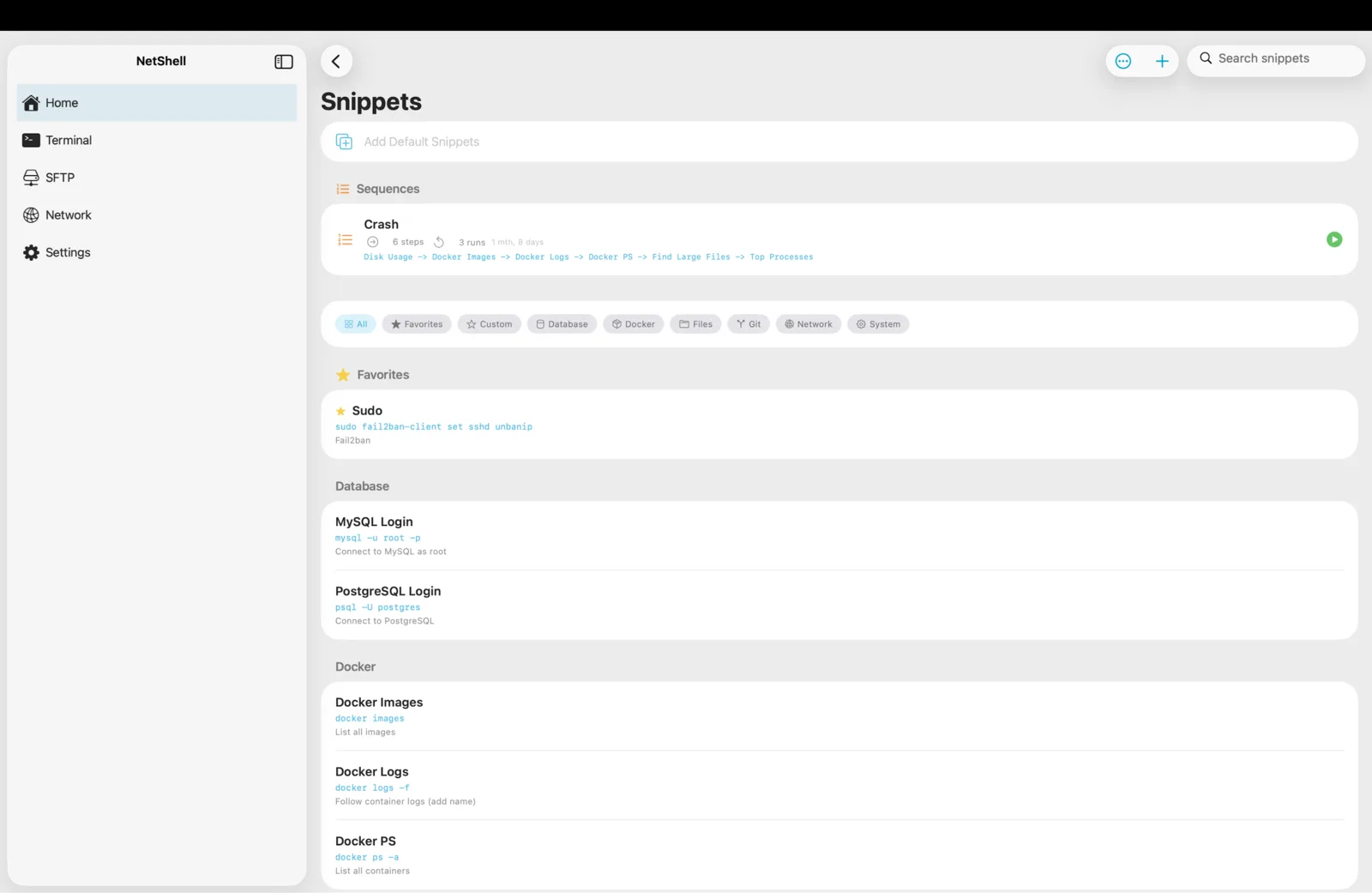
The commands you run on every box deserve to be typed once and reused forever — snippets save your common one-liners, folders keep them organized, and sequences chain them into repeatable routines you can fire at a single tap.
What a snippet is
A snippet is a saved command — or block of commands — that you can drop into any terminal session without retyping it. Anything you find yourself typing more than twice is a candidate: checking disk usage, tailing a log, restarting a service, pulling the latest from git, or printing system info. Instead of remembering the exact flags every time, you save it once and run it whenever you need it.
Snippets are plain text. They carry no credentials and no host of their own — they're just the command you want sent. That means the same snippet works across every connection in your list: a df -h snippet behaves identically whether you run it on a Raspberry Pi at home or a production box behind a jump-host.
Creating a snippet
You can build a snippet from scratch or capture one you just typed:
- Open the Snippets library from the connections screen or from inside a terminal session.
- Tap New snippet, give it a clear name (the name is what you'll scan for later), and type the command in the body.
- Optionally drop it into a folder so it lives next to related commands.
- Save. The snippet is now available from the quick-insert bar in every session.
Name snippets for what they do, not what they contain — "Tail nginx error log" is far easier to find under pressure than tail -f /var/log/nginx/error.log.
Organizing with folders
A handful of snippets reads fine as a flat list; a real library does not. Folders group related commands so you can find them fast:
- Group by task — Diagnostics, Deploys, Maintenance, Docker.
- Group by stack — one folder for your web servers' commands, another for database boxes.
- Group by project or client if your snippets are project-specific.
Move a snippet between folders any time by editing it and changing its folder. Folders are purely for your own navigation — they don't change what a snippet does or where it can run.
Running a snippet
Inside any terminal session, open the snippet bar, pick the snippet, and NetShell inserts it at the prompt. From there you have two natural styles:
- Review then run — the command lands at the prompt so you can read it, tweak a path or flag, and press return yourself. This is the safe default for anything that changes state.
- Insert and go — for harmless, read-only commands you run constantly (
uptime,free -h,docker ps), insert and send in one motion.
Because snippets are sent over your live SSH session, they run in whatever shell and directory you're currently in — exactly as if you'd typed them. A cd earlier in the session still applies.
Examples worth saving
A starter set that earns its place on almost any server:
# Disk + memory at a glance
df -h && free -h

# Top 10 processes by memory
ps aux --sort=-%mem | head -n 11

# Follow the system journal
journalctl -f

# What's listening, and on what
ss -tulpn

# Docker: running containers + recent logs
docker ps
docker compose logs --tail=100 -f
Notice the && in the first example — a single snippet can hold several commands joined with && (run the next only if the previous succeeds) or ; (run regardless). That's the simplest form of chaining and it lives entirely inside one snippet.
Chaining snippets into sequences
A sequence is an ordered list of snippets that run one after another — your routine, captured. Where a single snippet is one command, a sequence is a checklist: pull, build, restart, verify. Build one by stringing together the single-purpose snippets you already have, in the order you want them executed.
A typical deploy sequence might be:
- Pull latest —
cd /srv/app && git pull - Rebuild —
docker compose build - Restart —
docker compose up -d - Verify —
docker compose ps
Running the sequence sends each step in turn, so a routine that used to be four separate copy-pastes becomes one deliberate action. Keep the individual steps as reusable snippets — the same Restart snippet can appear in several sequences without being duplicated.
Snippets and the destructive-command guard
Saving a command in a snippet does not exempt it from NetShell's safety net. The destructive-command guard inspects what's actually sent to the server, so a dangerous command intercepts the same way whether you typed it by hand or fired it from a snippet or a sequence. Patterns it catches include rm -rf, DROP TABLE / TRUNCATE TABLE, git push --force, git reset --hard, shutdown / reboot, kubectl delete namespace, helm uninstall, and piping a download straight into a shell.
This matters most with sequences: an automated chain is exactly where a destructive step is easiest to overlook. If a sequence includes a guarded command, NetShell stops and asks you to confirm before that step reaches the host — the guard is a backstop, not a replacement for reading what you save. The safest habit is to keep destructive operations out of fire-and-forget sequences entirely, and run them as deliberate, reviewed single snippets.
Sync across your devices
Your snippets and folders travel with you. They sync through iCloud's key-value store alongside your connections, groups and tags, so a snippet you write on your iPhone is there on your iPad and Mac. Snippets are plain commands with no secrets in them — the things that are secret (passwords and SSH keys) sync separately through end-to-end-encrypted iCloud Keychain, never through a NetShell server. See Sync across devices for the full map of what moves where, and Key sync for how credentials are handled.
Putting it together
The workflow that scales: write small, single-purpose snippets named for what they do; file them into a few task-based folders; chain them into sequences for the routines you repeat; and let the destructive-command guard watch your back on anything that changes state. Combined with groups and tags for organizing hosts and a solid grasp of the terminal, snippets turn repetitive admin into a tap.
NetShell is an SSH client for iPhone, iPad & Mac with no account and no telemetry by default. Get it on the App Store and stop retyping the same commands.