
Docs / Connect to Hosts
Managing files with SFTP
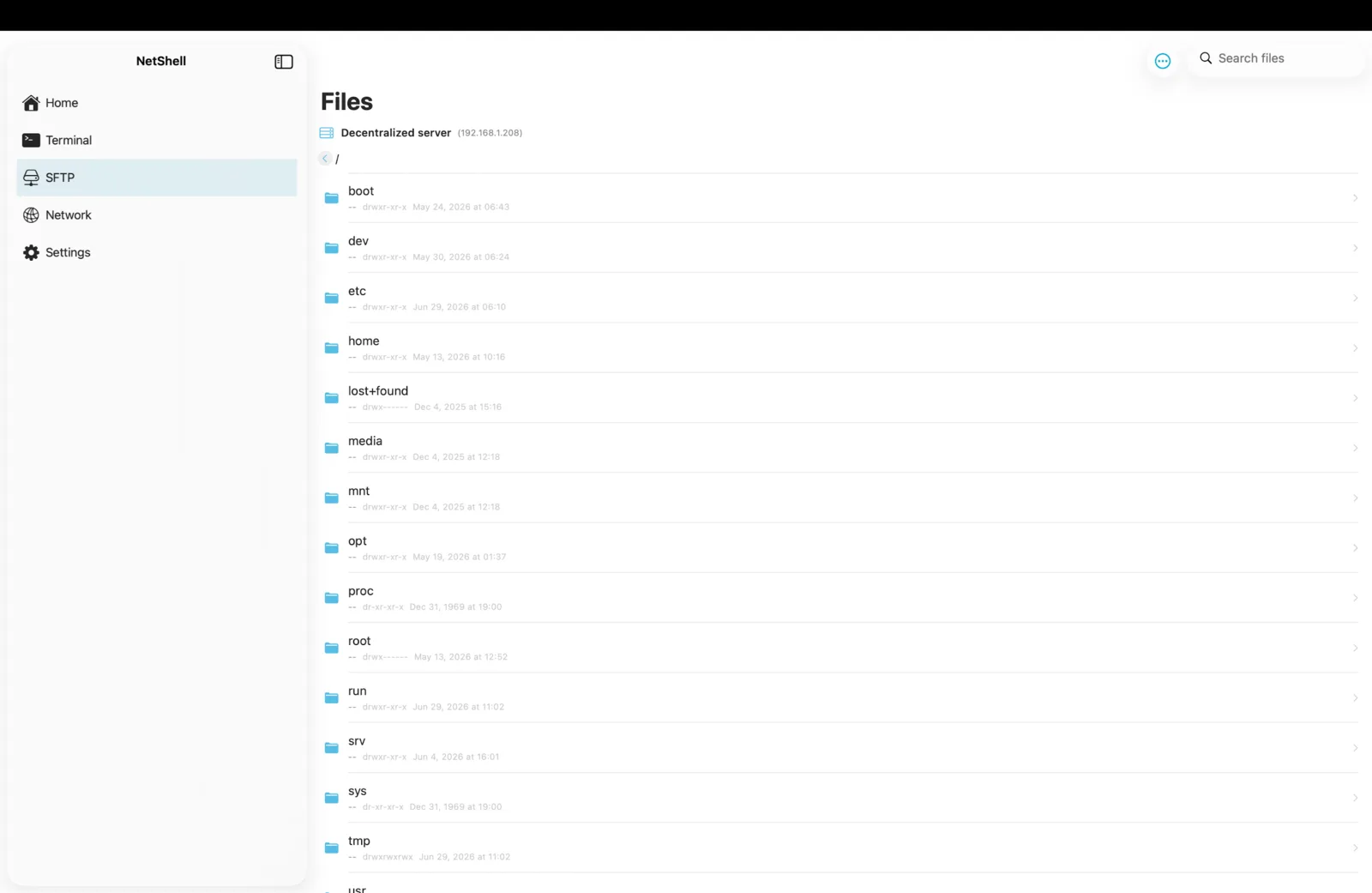
Browse, upload, download, edit, and manage files on any SSH server straight from NetShell on iPhone, iPad & Mac — no separate file-transfer app required.
What the SFTP browser is
SFTP rides on the same encrypted SSH connection you already use for the terminal, so there are no extra ports to open and no plaintext FTP. NetShell speaks SFTP over your existing SSH credentials — the same key or password, the same host verification, the same security guarantees. If a host can take an SSH session, it can take an SFTP session. The result is a full file manager layered on top of a channel you already trust.
Open a connection
- From your connections list, tap a saved host — or create one first; see Add a connection.
- Choose SFTP as the action, or open the Files / SFTP tab once the session is live.
- On a brand-new host you'll be asked to confirm the server's fingerprint. NetShell verifies the host at handshake time and fails closed — it never sends your credentials to an unknown or changed host until you approve it. See Host verification.
The browser opens in your home directory by default. Authentication uses whatever you set on the connection — a password, or an Ed25519 or RSA key from the Key Vault. Private keys and passphrases live in the hardware-backed iOS Keychain, protected by Face ID, and are never transmitted to a NetShell server.
Navigating the file tree
- Tap a folder to descend into it; use the path bar or back gesture to move up a level.
- Jump to a path directly by typing an absolute path (for example
/var/www/html) instead of clicking down level by level. - Hidden files — dotfiles such as
.envand.sshcan be shown or hidden from the view options. - Sort by name, size, or modified date to find what you need quickly in large directories.
Uploading and downloading
Move files in either direction without leaving the app:
- Download — select a file and save it to the iOS Files app, share it to another app, or open it in place to preview.
- Upload — pull files in from the Files app, iCloud Drive, Photos, or any provider exposed through the system document picker, and drop them into the current remote folder.
- Drag and drop — on iPad and Mac, drag files between apps and the SFTP browser.
Transfers show progress and can be left running while you switch tabs within the app.
Editing files in place
Open a text file — a config, a script, an nginx server block, a .env — straight from the browser, make your changes in the built-in editor, and save it back to the server over the same SFTP session. There's no manual download-edit-reupload dance; saving writes the file in place. For quick one-line tweaks this is often faster than dropping to the terminal and opening an editor there.
config.yml → config.yml.bak) so you can revert in one step if a change breaks a service.Permissions and ownership
Inspect and adjust a file's Unix permissions from its detail view. You can change the read, write, and execute bits for owner, group, and others — the equivalent of chmod:
chmod 600 ~/.ssh/authorized_keys   # private, owner read/write only
chmod 644 index.html               # world-readable, owner-writable
chmod 755 deploy.sh                # executable script
Permission changes apply over the live session immediately. If a server refuses a permission change or a write, it's almost always because your SSH user doesn't own the file or lacks rights to that directory — connect as a user with the right ownership, or adjust ownership from the terminal with chown.
Create, rename, and delete
- New folder — create directories to organise uploads before you push files into them.
- Rename — change a file or folder name in place; combined with the editor this makes safe edit-and-swap workflows easy.
- Delete — remove files and folders you no longer need.
Deletes over SFTP are permanent — there's no remote trash to recover from, so confirm the path before you delete a directory. The destructive-command guard that protects the terminal covers shell commands like rm -rf; in the file browser the safeguard is you, so double-check what's selected.
Tips for large transfers
- Stay connected. Big uploads need the session to stay alive — keep the device awake during the transfer and avoid switching away from the app on an unstable link.
- Compress first. For many small files,
tarorzipthem on the server, transfer one archive, then extract — far faster and more reliable than thousands of individual SFTP operations. - Use a jump host where needed. If the target sits behind a bastion, set up the chain once and SFTP through it. See Jump hosts.
- Mind the destination free space. Check
df -hin the terminal before pushing a large file so you don't fill a volume. - Verify integrity on critical transfers by comparing checksums on both ends, for example
shasum -a 256 file.
Security and your credentials
SFTP inherits every protection of the underlying SSH connection. The host is verified on first use and re-checked on every reconnect; a changed fingerprint stops the session cold until you decide to trust it. Passwords and key passphrases stay in the hardware-backed iOS Keychain behind Face ID, and sync only via Apple's end-to-end encrypted iCloud Keychain — never through a NetShell server. The app auto-relocks behind Face ID after idle, so a browser left open on a sensitive directory isn't exposed if your device is picked up. See Encryption and Face ID lock.
Troubleshooting
- "Permission denied" on write — your SSH user doesn't own the target file or directory. Check ownership and the directory's permissions.
- Can't see a folder — it may be a dotfile directory; enable hidden files in the view options.
- Host fingerprint changed warning — NetShell refuses to proceed until you confirm. This is intentional. Don't accept blindly if you weren't expecting the server to be rebuilt. See Host verification.
- Transfer stalls — a dropped network usually ends the SFTP session; reconnect and try again. See Troubleshooting.
NetShell is an SSH client for iPhone, iPad & Mac (iOS/iPadOS 17+) with no account and no telemetry by default. Get it on the App Store.