
Docs / Network & Monitoring
Server dashboards & alerts
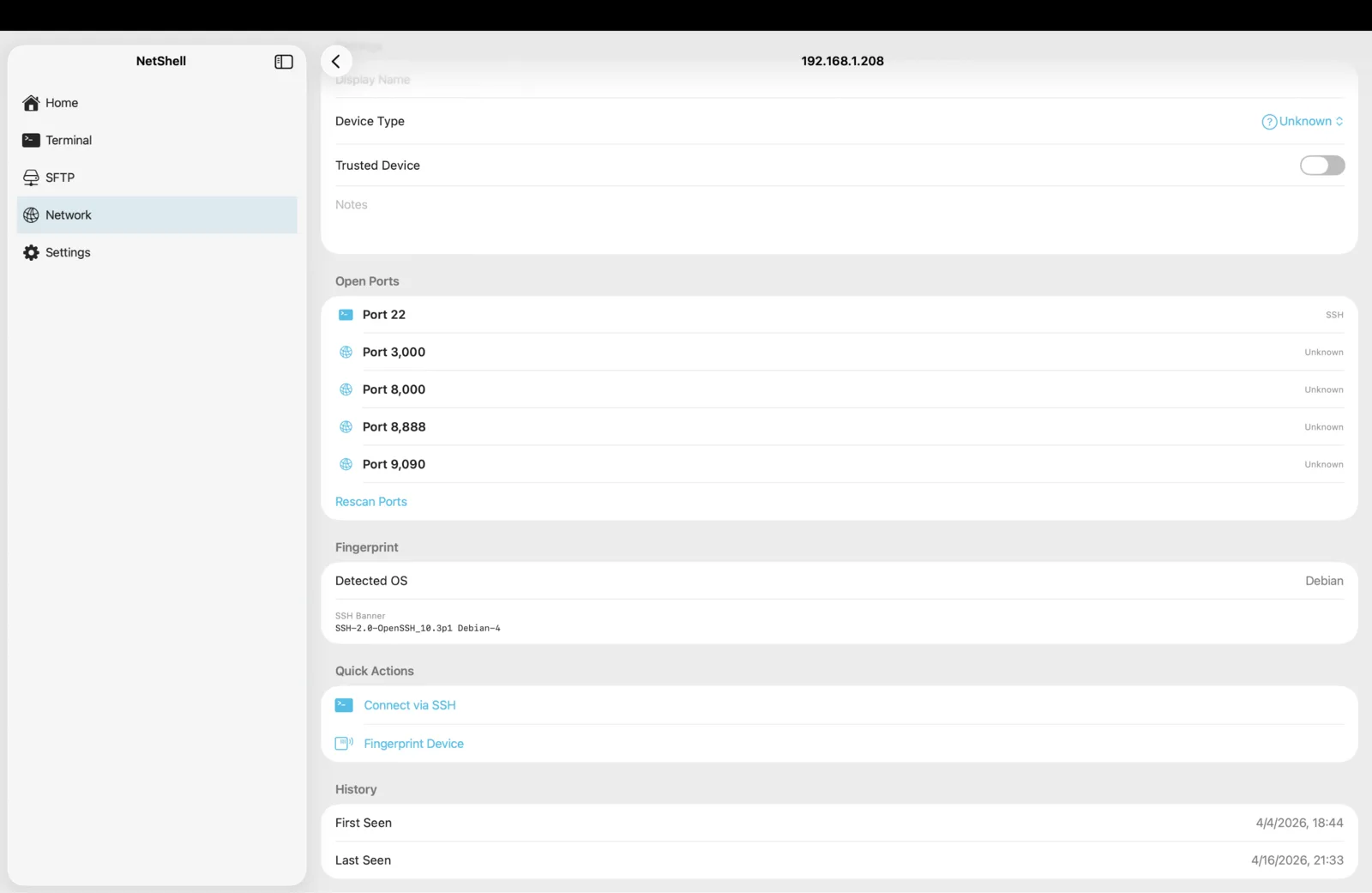
Turn any saved SSH connection into a live health dashboard — CPU, memory, disk, and uptime at a glance — with alerts that warn you before a box falls over.
What server dashboards show
Once monitoring is enabled for a connection, NetShell collects a small set of vital signs over your existing SSH session and renders them as a dashboard. There's no agent to install on the server and no extra port to open — it reads the same standard system files and commands you'd run by hand, then charts the results. The four core metrics are:
- CPU. Current processor load, so you can spot a runaway process or a build pinning every core.
- Memory. Used versus available RAM, the first thing to check when a service starts swapping or gets OOM-killed.
- Disk. Filesystem usage, the classic silent failure — a log partition filling to 100% takes everything down with it.
- Uptime. How long the host has been running, an instant tell for an unexpected reboot or a crash-loop.
Each metric is shown as a clear, current value with recent history, so you see not just where a server is now but which way it's trending.
Enabling monitoring per connection
Monitoring is opt-in and scoped to each host, so you only watch the servers that matter and don't pay battery or bandwidth for the rest.
- Open a saved connection's detail screen (see Add a connection if you haven't created one yet).
- Turn on the server dashboard / monitoring option for that host.
- NetShell connects over SSH using your stored credentials, samples the vitals, and draws the dashboard.
Because monitoring rides your normal SSH login, the same security model applies: host verification runs at handshake time and fails closed, so NetShell never sends credentials to an unknown or changed host. If a key doesn't match, monitoring stops rather than trusting a stranger.
Reading the dashboard
The dashboard is designed to be glanceable. A healthy server reads green and steady; a struggling one shows a metric climbing toward its ceiling. Watch for a few classic shapes:
- Disk creeping up and never coming down usually means logs or caches that aren't being rotated.
- Memory high with CPU low often points at a leak or an over-provisioned cache.
- Uptime that just reset when you didn't reboot is a sign of a crash, a watchdog kill, or a power event worth investigating.
When something looks wrong, you're one tap from a full terminal on that same host — open a session and dig in directly. See Terminal basics.
Custom alerts
Dashboards tell you what's happening when you're looking. Alerts tell you when you're not. You can set custom thresholds per server so NetShell flags a metric the moment it crosses a line you care about — for example, disk usage above a percentage, memory pressure beyond a level, or a CPU load that stays pinned. Set the threshold that reflects how much headroom a given box should keep; a database server and a hobby Raspberry Pi deserve different limits.
Alerts are most useful as an early-warning layer: a disk alert at 85% gives you time to clear space before the partition hits 100% and services start failing. Tune the numbers so they fire early enough to act, but not so aggressively that you learn to ignore them.
Foreground monitoring & battery
NetShell polls servers while it's the app you're actively using — that's foreground monitoring. The instant you switch away or the screen locks, NetShell pauses its monitoring loops instead of hammering your servers and your battery from the background. This is a deliberate design choice on iOS: a network client that keeps SSH sessions and polling timers alive in the background drains the battery and risks being killed by the system watchdog.
The practical effect:
- Open NetShell — dashboards refresh and alerts evaluate against live data.
- Leave NetShell — polling quiets down so you're not paying for samples nobody is reading.
- Return — monitoring resumes and the dashboard catches up.
If you've also enabled the app lock, returning after a long enough gap shows the Face ID gate first; monitoring picks back up once you're past it. See Face ID app lock.
Monitoring many servers
If you run a fleet, organise hosts with groups and tags so your dashboards stay legible — production separated from staging, by region, or by role. That structure carries through the rest of the app and across your devices. See Groups & tags. For the servers you check most, a home-screen widget and Siri Shortcuts can surface status without even opening the app.
Privacy of your metrics
Everything the dashboard reads comes straight from your servers over your own SSH connection to your device. NetShell collects no telemetry by default, and metric data is never sent to a NetShell server — analytics are strictly opt-in and never include the contents of your dashboards. Connection details sync across your iPhone, iPad & Mac only through Apple's iCloud (KVS for connections; iCloud Keychain, end-to-end encrypted, for credentials). See Privacy & telemetry and Sync across devices.
Troubleshooting
- No data appears. Confirm the connection itself works by opening a terminal to it; if login fails, fix the connection first.
- A new-host or changed-key prompt blocks monitoring. This is host verification failing closed — approve the host only if you trust the change. See Host verification.
- Dashboard seems frozen. If NetShell was in the background, monitoring was paused to save battery; bring the app forward and it resumes.
- Still stuck? See Troubleshooting.