
Docs / Terminal
SMB file shares
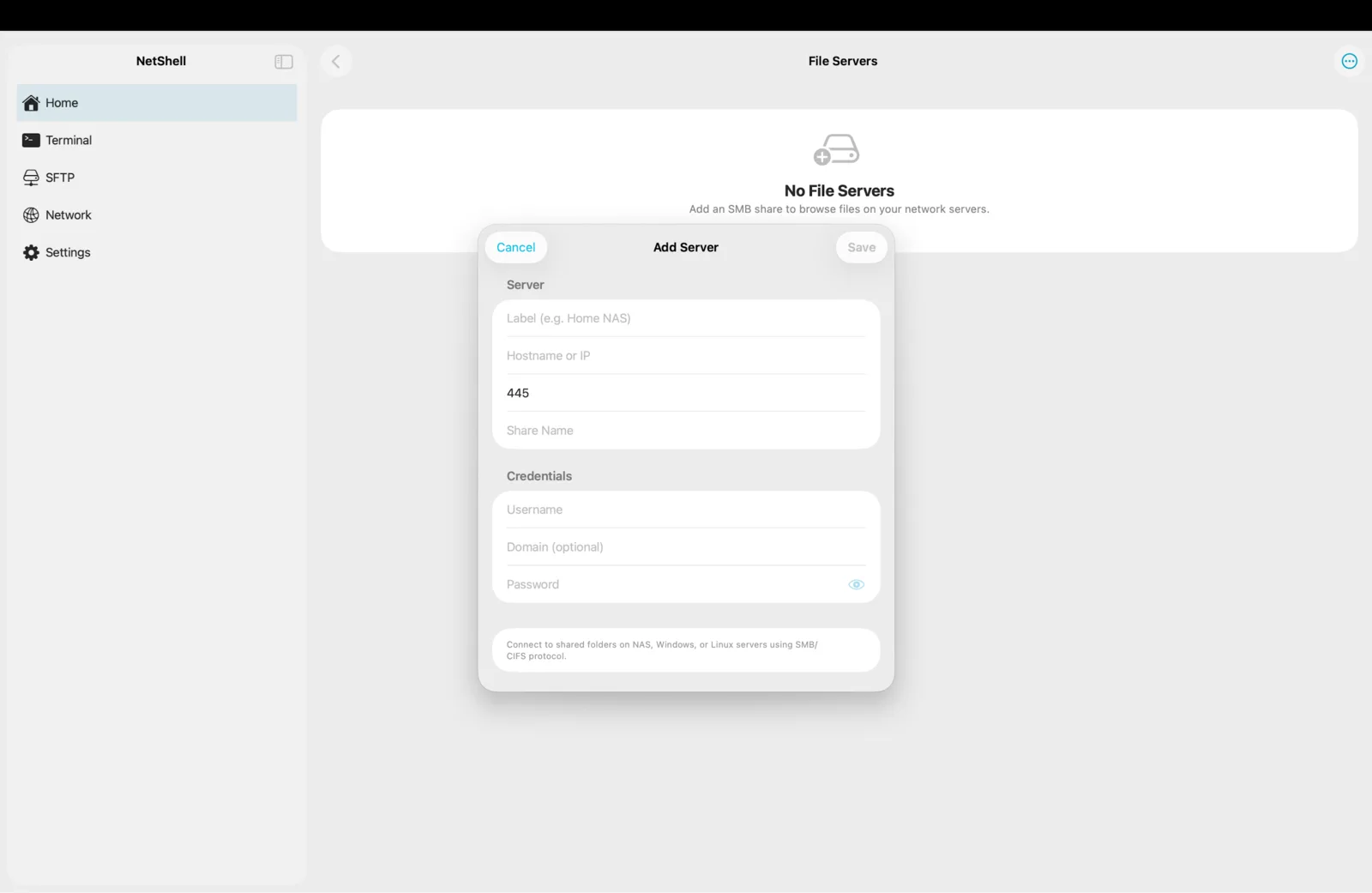
Browse and transfer files on your NAS, Windows PC, or Samba server over SMB — the same protocol your desktop uses for network shares — right from NetShell on iPhone, iPad & Mac.
What SMB is for
SMB (Server Message Block, also called CIFS) is the file-sharing protocol that Windows, macOS Finder, and Linux Samba all speak natively. It's how a NAS appliance — Synology, QNAP, TrueNAS, Unraid — exposes shared folders on your network, and how a Windows PC shares a drive. NetShell includes an SMB browser so you can reach those shares directly, without going through SSH and without a separate file-manager app. If a device on your network publishes an SMB share, NetShell can connect to it, list it, and move files in both directions.
This is a different transport from SFTP. SFTP rides on an SSH login to a server; SMB talks to a file server that may have no SSH at all — most consumer NAS boxes ship SMB enabled and SSH disabled. Use whichever the target speaks.
Add an SMB connection
- Create a new connection and choose SMB as the type. (See Add a connection for the general flow.)
- Enter the server's host — an IP address such as
192.0.2.20or a hostname likenas.local. - Enter the username and password for an account that can access the share. For a NAS this is the NAS user; for a Windows machine it's a local or domain account.
- Optionally name the share you want (for example
mediaorbackups). Leave it blank to list the shares the server offers and pick one after connecting. - Save, then open the connection to browse.
Browsing shares and folders
Once connected, NetShell lists the available shares (or opens the one you named). Tap a share to enter it, then navigate the folder tree the same way you would in the SFTP browser:
- Tap a folder to descend; use the path bar or back gesture to move up a level.
- Sort by name, size, or modified date to find files quickly in large media folders.
- Preview a file by opening it in place, or save it out to the iOS Files app.
SMB shares are often large — whole photo libraries, video collections, backup archives — so sorting and jumping straight to a known folder beats scrolling.
Transferring files
Move files in either direction without leaving the app:
- Download — pull a file off the share into the iOS Files app, iCloud Drive, or another app via the share sheet.
- Upload — push files from the Files app, Photos, or any system document provider into the current share folder. Handy for offloading photos or video to a NAS.
- Drag and drop — on iPad and Mac, drag files between Finder or other apps and the SMB browser.
Transfers show progress and keep running while you switch between tabs inside the app. For a folder full of small files, archiving them into one .zip on the source side and transferring the single file is far faster than many separate SMB operations.
Permissions and access
Unlike SFTP, where you change Unix permission bits per file, SMB access is governed by the share and the account you log in as. What you can read, write, or delete is decided by the server's share configuration and the rights granted to your user:
- If a folder is read-only for your account, uploads and deletes to it will be refused — that's the server enforcing its share permissions, not a NetShell limit.
- To gain write access, grant your user write rights on the share in the NAS or Windows sharing settings, then reconnect.
- Some servers expose a guest or public share that needs no credentials; others require a named account for every share.
Credentials and security
The username and password for an SMB connection are stored in the hardware-backed iOS Keychain, protected by Face ID — never in plain text and never sent to a NetShell server. They sync across your own devices only through Apple's end-to-end encrypted iCloud Keychain. The app auto-relocks behind Face ID after it sits idle, so a share left open on a sensitive backup folder isn't exposed if your device is picked up. See Face ID lock and iCloud Keychain sync.
One important caveat: SMB is a LAN protocol. Keep SMB traffic on your trusted home or office network, or reach the network through a VPN. Don't expose an SMB share directly to the public internet — it isn't designed for that. If you need files on a box across the internet, prefer SSH/SFTP, optionally through a jump host.
SMB vs SFTP — which to use
Both let you browse and transfer remote files in NetShell, but they suit different targets:
- Use SMB for a NAS, a Windows file share, or a Samba server on your LAN — devices built to serve files but which may not run SSH at all. SMB connects with a NAS/Windows account and respects the server's share permissions.
- Use SFTP for any Linux/Unix server you already SSH into. It reuses your SSH login and key, works over the public internet, lets you edit files in place, and adjusts Unix permission bits with
chmod.
Rule of thumb: if the device is a file appliance on your network, reach for SMB; if it's a server you administer over SSH, reach for SFTP. Many setups use both — SFTP to manage the web server, SMB to dump media onto the NAS.
Troubleshooting
- Can't connect — confirm the host is reachable on your LAN (the network scanner will show it) and that SMB file sharing is enabled on the NAS or PC.
- "Access denied" or no shares listed — the username/password is wrong, or that account has no rights to any share. Check the credentials and the share permissions on the server.
- Can write to one folder but not another — the second folder is read-only for your account. Grant write rights on the server side.
- Upload refused — the share itself may be read-only, or the destination volume may be full. Check free space on the NAS.
- Works at home, fails away — SMB is LAN-only. Connect through your VPN, or use SFTP for remote access. See Troubleshooting.
NetShell is an SSH client for iPhone, iPad & Mac (iOS/iPadOS 17+ and Mac) with no account and no telemetry by default. Get it on the App Store.