
Docs / Getting Started
Download NetShell
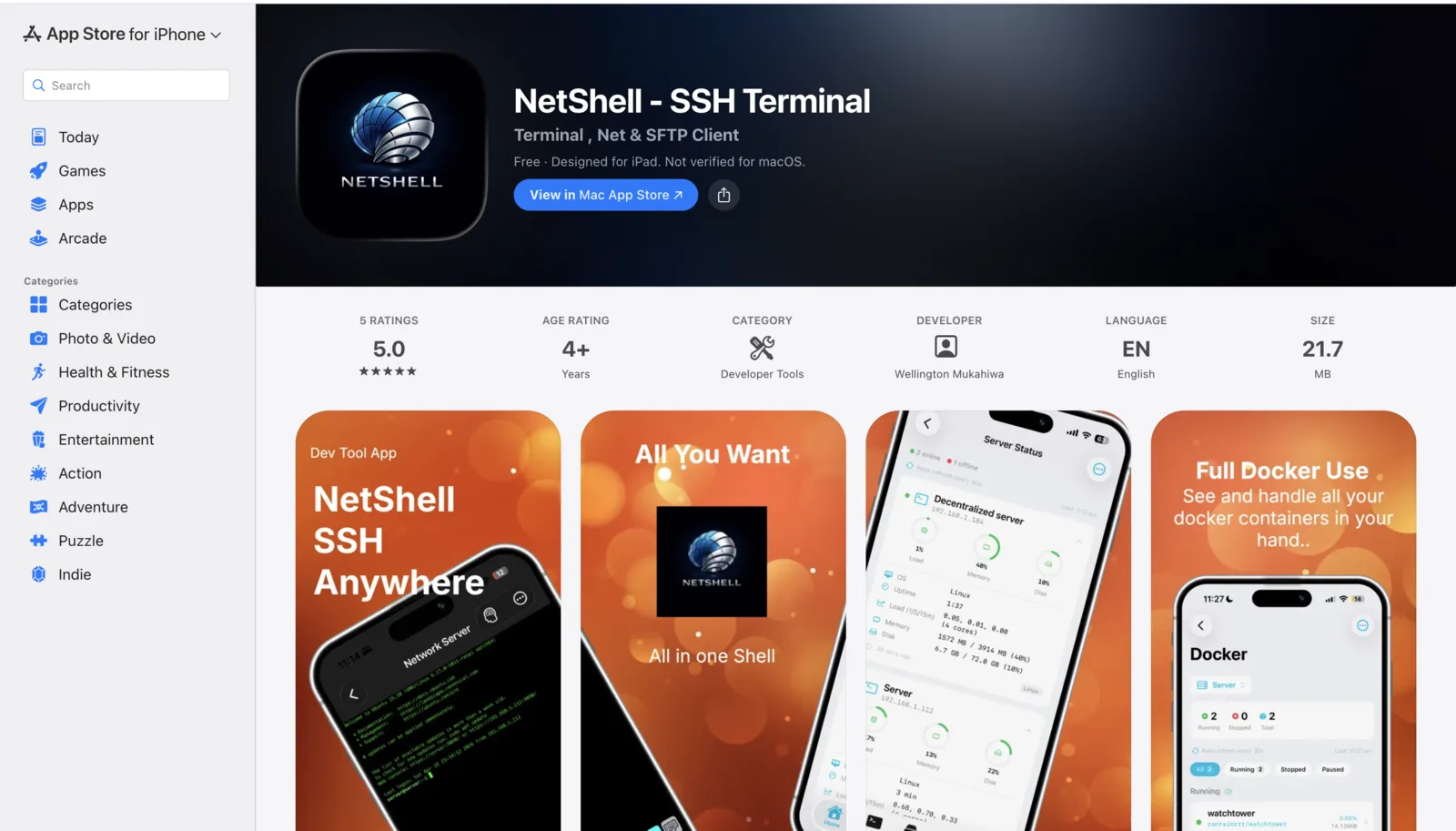
NetShell is an SSH client for iPhone, iPad & Mac — install it once, sign in to nothing, and start managing your servers.
Get NetShell
Download NetShell from the App Store. The same app runs on iPhone, iPad and Mac, and one subscription covers all three. There is no account to create — you open it straight to the home dashboard. Every feature described in these docs is in the one plan, available the moment you install.
- iPhone & iPad — search "NetShell" in the App Store or follow the link above.
- Mac — NetShell runs natively on the Mac, so the same connections, keys and terminal are at your desk too.
Requirements
NetShell targets current Apple platforms so it can use the hardware-backed iOS Keychain, on-device intelligence and modern SwiftUI.
- iPhone & iPad — iOS / iPadOS 17 or later.
- Mac — a recent macOS that supports the NetShell Mac app.
- Apple Intelligence (optional) — the on-device, private AI assistant needs iOS 26+ on a supported device. You can still use NetShell fully without it, or bring your own model.
Free, and what Pro adds
One SSH server in the terminal is free. NetShell Pro unlocks every other server and everything below; there is one paid tier, and nothing is held back for a higher one. A Pro subscription covers your iPhone, iPad and Mac, and includes:
- Full SSH terminal with multiple concurrent sessions and 16 themes.
- An on-device key vault — generate ed25519 and RSA keys, or import your existing OpenSSH keys.
- Multi-hop / jump-host chaining, an SFTP browser and SMB file shares.
- A network scanner, a Bluetooth scanner and server dashboards with custom alerts.
- Docker container and Compose-stack management, Siri Shortcuts and home-screen widgets.
Privacy: no telemetry by default
NetShell collects no analytics by default. Analytics are strictly opt-in — if you never turn them on, nothing is sent. Your credentials are never part of any data NetShell handles externally: private keys and passphrases live in the hardware-backed iOS Keychain, protected by Face ID, and only ever sync through Apple's end-to-end encrypted iCloud Keychain — never a NetShell server. See Privacy & telemetry for the full breakdown.
First launch & onboarding
The first time you open NetShell you'll see a short onboarding flow that introduces the home dashboard and the core tabs. There's nothing to sign up for — no email, no password, no account. When onboarding finishes you land on the dashboard, ready to add your first server.
- Open NetShell after installing.
- Step through the onboarding screens (you can do this on day one with no prior data).
- Optionally enable the Face ID lock when prompted — or skip it and turn it on later.
- Tap New SSH to add a connection, or jump to the Quickstart.
Enable the Face ID lock
NetShell can gate the whole app behind Face ID, both at cold launch and when you return after the app has been in the background. After idle, the app auto-relocks so an unattended device doesn't expose your servers or keys.
- Open Settings → Security inside NetShell.
- Turn on the Face ID lock.
- Choose your auto-lock idle timeout so the app re-secures itself after a period of inactivity.
The same Face ID protection guards your private keys and passphrases in the Keychain — even if someone picks up an unlocked phone, your credentials stay sealed. Read more in Face ID lock.
Sync across your devices
Sign in to nothing, but still keep your setup in step. NetShell syncs your connections, snippets, folders, groups and tags through iCloud key-value storage, while passwords and SSH keys travel separately through the end-to-end encrypted iCloud Keychain. Host (known-hosts) keys deliberately stay device-local and do not sync, so trust decisions remain tied to the device that made them. See Sync across devices and Key sync.
Built-in safety
From your very first connection, NetShell verifies a server's host key at handshake time and fails closed: if a host is unknown or its key has changed, your credentials are never sent and you decide whether to trust it (trust-on-first-use). A destructive-command guard also watches your typing and intercepts dangerous lines — rm -rf, DROP/TRUNCATE TABLE, git push --force, git reset --hard, shutdown/reboot, kubectl delete namespace, helm uninstall, pipe-to-bash and more — before they reach the wire. See Host verification and the command guard.