
Docs / Connect to Hosts
Groups & tags
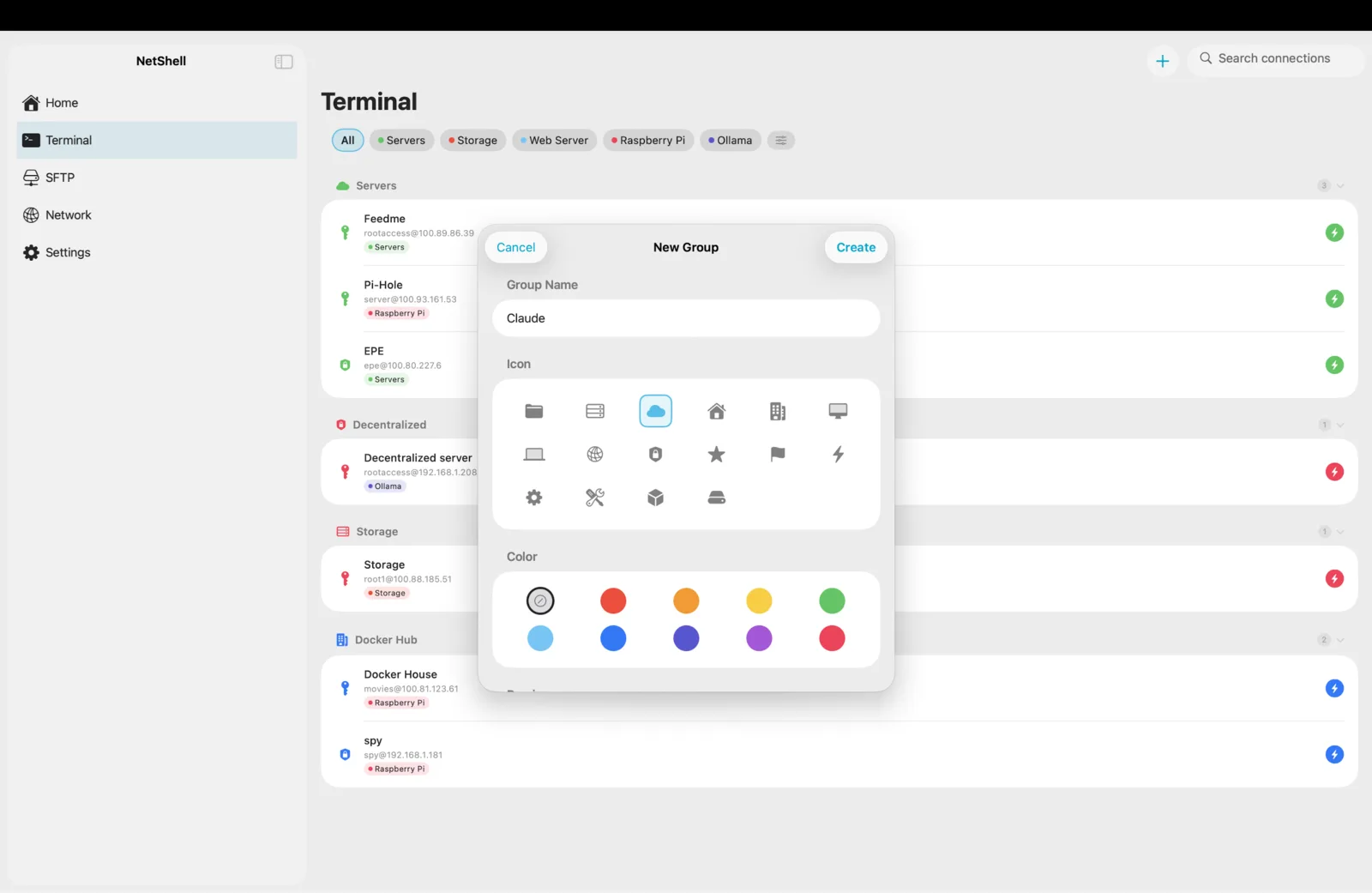
Two servers fit in your head; two hundred do not — groups, tags, collapsing and filtering turn a long, flat connection list into a fleet you can navigate in seconds.
Groups vs tags: when to use which
NetShell gives you two complementary ways to organise connections, and they answer different questions.
- Groups are the structure — each connection belongs to one group, like a folder. They give your list visible sections you can collapse and expand. Think where a host lives: Production, Home lab, Client — Acme.
- Tags are the cross-cutting labels — a connection can carry many. They answer what a host is, regardless of which group it sits in:
web,db,arm64,needs-patch,raspberry-pi.
Use a group for the one place a server primarily belongs; use tags for every other axis you might later want to filter on. A single box can be in the Production group and still be tagged web, nginx and frankfurt.
Creating and assigning groups
- Open a connection for editing (or create a new one — see Add a connection).
- Pick a Group, or create one inline by typing a new name.
- Save. The connection now appears under that group's header in the main list.
New connections that you haven't filed yet sit in a default ungrouped section, so nothing ever gets lost. Reassigning is just editing the connection and choosing a different group — the move is instant and syncs to your other devices.
Collapse and expand to tame the list
Every group header can be collapsed. On a fleet of dozens of hosts, this is the single biggest readability win: collapse the groups you're not touching today and the three you care about stay on screen without scrolling.
- Tap a group header to collapse it; tap again to expand.
- Collapsed state is remembered per group, so the layout you set stays put between launches.
- Because collapse state is part of your organised setup, it travels with your other organisation data across devices via iCloud.
A common workflow: keep Production collapsed by default (you rarely poke it casually), and leave Home lab and the client you're actively working expanded.
Creating and applying tags
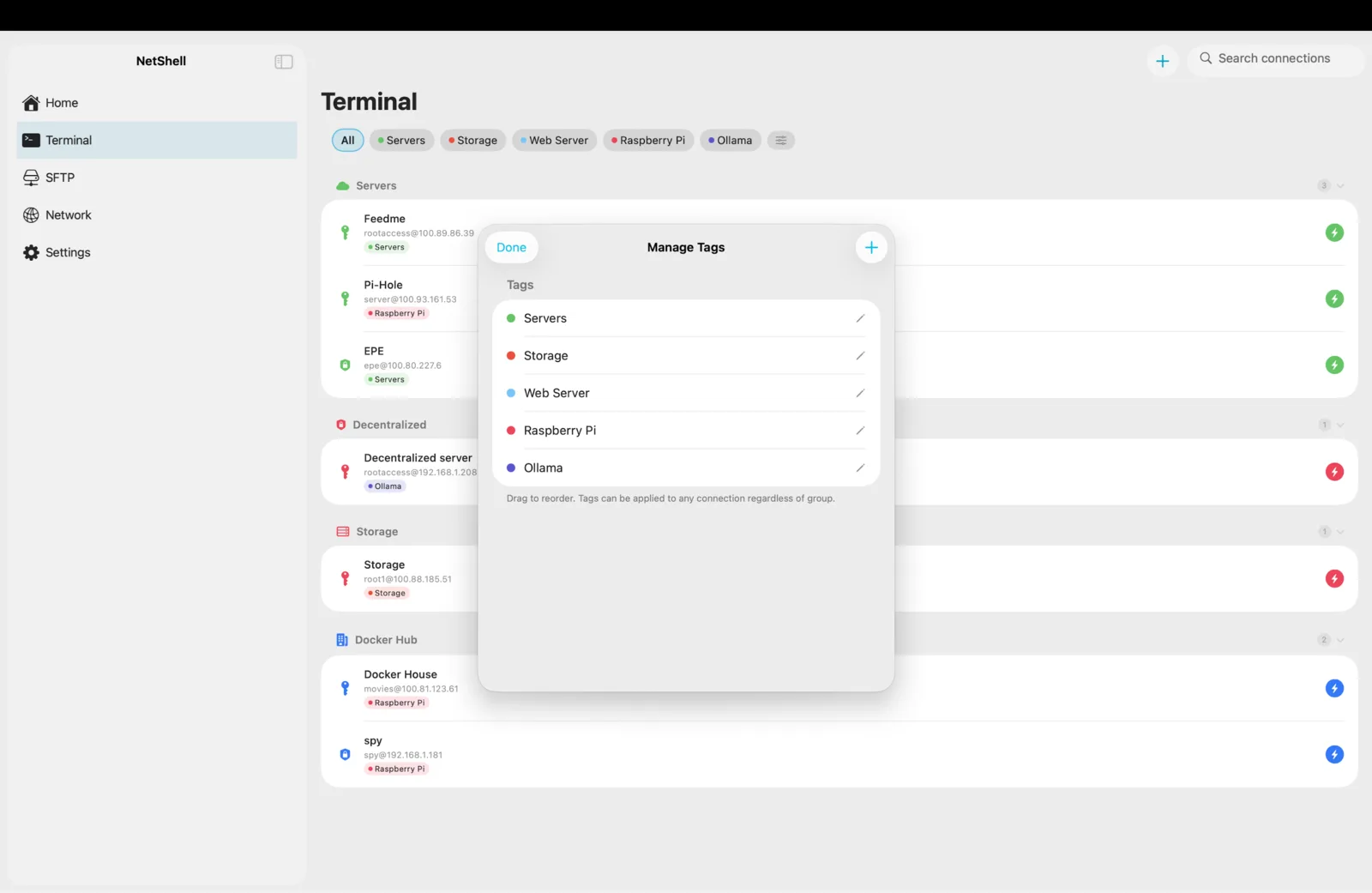
Tags are short, lower-case labels you attach to a connection. Add them while editing a connection — type a new tag to create it, or pick from ones you've used before. Apply as many as make sense.
Good tagging habits scale far better than ad-hoc ones:
- By role —
web,db,cache,proxy,build. - By platform —
arm64,raspberry-pi,ubuntu,alpine. - By location or owner —
frankfurt,home,client-acme. - By state —
needs-patch,staging,decommission— temporary labels you remove once the work is done.
web and web-servers and Web are three different tags, and inconsistency is what makes a tag set useless six months later.Filtering: find the right hosts fast
Tags become powerful when you filter by them. Narrow the connection list to just the hosts carrying a tag — show me everything tagged db, or everything needs-patch — and act on exactly that subset.
Filtering composes with groups: you can scan a single group, or filter across the whole fleet by tag to pull together hosts that live in different groups but share a job. That's the cross-cutting view groups alone can't give you — the four database servers spread across Production, Staging and Client — Acme, all in one filtered list.
- Filter to
webbefore a deploy to see every front-end box at once. - Filter to
needs-patchto drive a maintenance sweep, removing the tag as you clear each host. - Combine with search by name or hostname when you already know roughly what you're after.
Ordering and a naming scheme that scales
How things are named drives how easily you find them. A flat list of server1, vps-final, new-box-2 is unnavigable at scale; a deliberate scheme reads itself.
- Prefix by environment so related hosts sort together:
prod-web-01,prod-web-02,prod-db-01. - Zero-pad numbers (
01, not1) so ten servers don't sort as1, 10, 2. - Keep the human label in the connection name and the role in tags — the name answers "which box", the tags answer "what kind".
Pair a clear name with the right group and a couple of tags, and a 200-host fleet stays as easy to work as five.
Organising alongside snippets and the terminal
Groups and tags organise where you run things; snippets and folders organise what you run. The two line up naturally: filter the list to web, open a terminal on each, and fire the same Reload nginx snippet across them. Hosts you reach through a jump host can be grouped and tagged just like direct connections — the organisation is about how you think of the server, not how you reach it.
Marking your most-used hosts as favourites is a fast complement to groups: the handful you touch daily stay one tap away, while groups and tags keep the long tail of the fleet ordered behind them.
Syncing your organisation across devices
Your whole organisational layer — connections, folders, groups and tags, including which groups are collapsed — syncs across your iPhone, iPad & Mac through iCloud's key-value store. File a server into a group on your iPad and it's already grouped when you pick up your iPhone.
One important distinction: that store carries your structure, not your secrets. Passwords and SSH keys are never placed in the iCloud key-value store — they sync separately through Apple's end-to-end-encrypted iCloud Keychain, and host (known-hosts) keys stay device-local and don't sync at all. See Sync across devices and Key sync for how that split works.
Troubleshooting
- A connection isn't in the group I expected — edit it and check the assigned group; a brand-new connection sits in the default ungrouped section until you file it.
- A group looks empty — it may simply be collapsed. Tap the header to expand it.
- A tag filter shows nothing — tags are case- and spelling-sensitive;
DBanddbare different. Check exactly which tag each host carries. - Groups or tags missing on another device — confirm iCloud is enabled and has synced on both. See Sync across devices and Troubleshooting.
- Too many stale tags — remove labels you no longer use as you go; temporary state tags like
needs-patchare meant to be cleared once the work is done.
NetShell is an SSH client for iPhone, iPad & Mac (iOS & iPadOS 17+, and Mac) with no account and no telemetry by default. Get it on the App Store.