
Docs / AI Assistant
Bring your own model
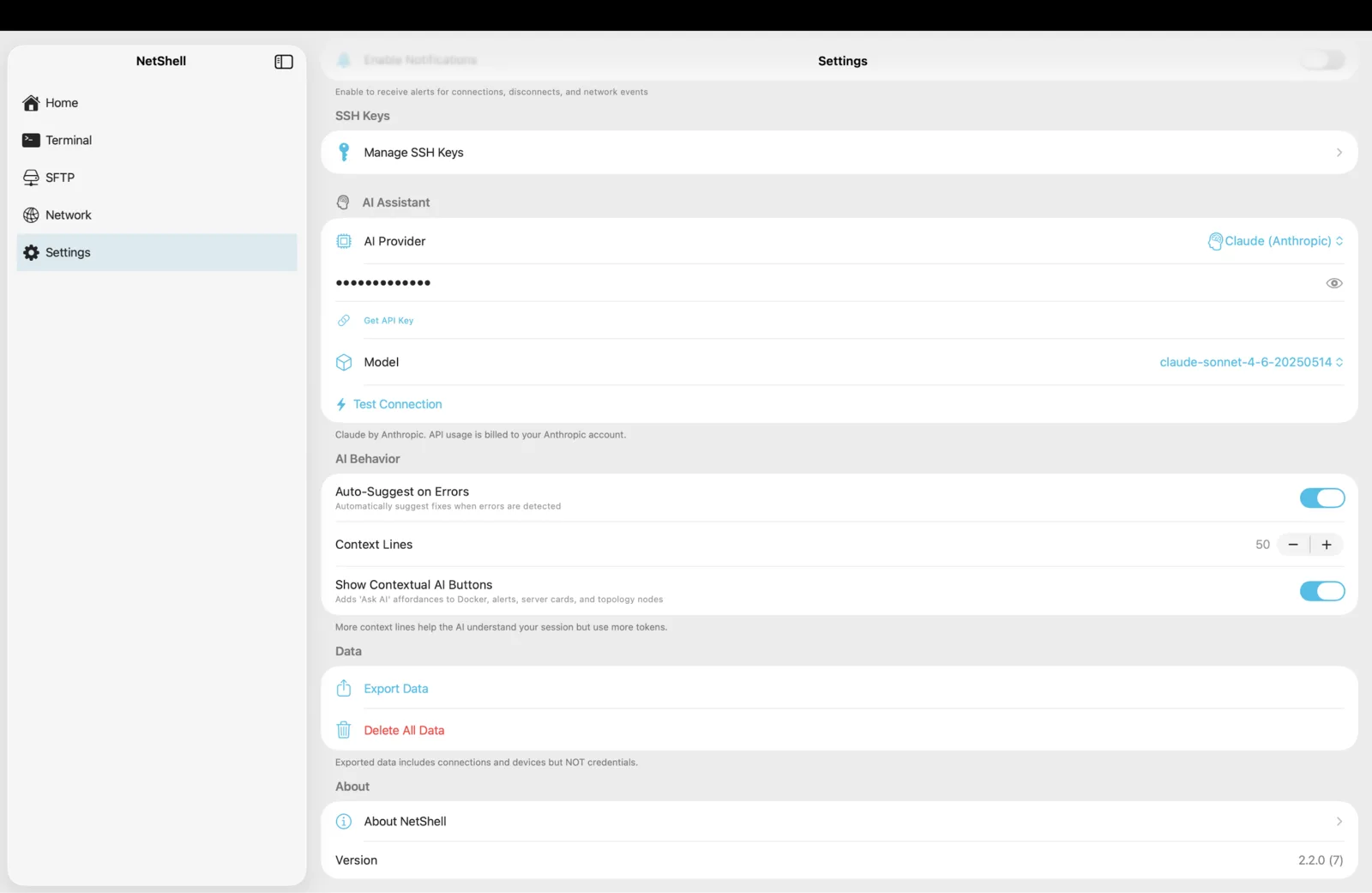
Plug your own Claude, OpenAI, or Ollama account into NetShell's AI assistant — your key, your model, your bill, stored in the hardware-backed iOS Keychain.
Two ways to run the AI assistant
NetShell's AI assistant has two backends. The first is Apple Intelligence, which runs on-device, needs no account, and sends nothing to a third party — available on supported hardware running iOS 26 and later. The second is bring your own model: you supply credentials for an external provider and NetShell talks to it directly. This page covers the second path.
Bring-your-own-model is the right choice when you want a specific frontier model, when you're on hardware that doesn't offer on-device intelligence, or when you already pay for an AI provider and want NetShell to use that same account. There's no NetShell subscription and no NetShell-operated AI relay — requests go from your device straight to the provider you configured.
Supported providers
- Claude (Anthropic). Use an Anthropic API key to reach Claude models.
- OpenAI. Use an OpenAI API key to reach GPT-family models.
- Ollama. Point NetShell at a self-hosted Ollama server on your own network — your models, your hardware, no per-request cloud cost.
For Claude and OpenAI you bring an API key from the provider's own dashboard. For Ollama you bring a base URL — the address of the machine running Ollama — because Ollama serves the model locally rather than over a metered cloud API.
Where your API key is stored
This is the part that matters most. When you paste a Claude or OpenAI API key into NetShell, it is written to the hardware-backed iOS Keychain — the same protected store NetShell uses for SSH private keys and passphrases — not to a plist, not to a settings file, and never to a NetShell server.
Because the key lives in the Keychain, it inherits the same protections as the rest of the Key Vault: it's guarded by Face ID, sealed behind the app's auto-relock, and it syncs only through Apple's end-to-end encrypted iCloud Keychain to your own devices. NetShell never transmits your API key anywhere except, in the body of an outbound request, to the provider that key belongs to. See iCloud Keychain sync for how secrets move between your iPhone, iPad, and Mac.
Connecting Claude or OpenAI
- Create an API key in your provider's console — Anthropic's console for Claude, OpenAI's platform for OpenAI.
- In NetShell, open the AI settings and choose the provider (Claude or OpenAI).
- Paste the API key. NetShell stores it in the Keychain on save.
- Pick a model (see below), then ask the assistant something from a terminal session to confirm it answers.
If a request fails, the most common causes are a mistyped or revoked key, or a billing limit on the provider account. NetShell surfaces the provider's error so you can tell an authentication problem from a quota problem.
Connecting Ollama
- Run Ollama on a machine you control and pull at least one model on that host.
- Make sure the Ollama server is reachable from your device on the network.
- In NetShell, choose Ollama and enter the server's base URL.
- Select one of the models you've pulled and start asking.
Ollama keeps everything on your own hardware, so there's no per-request cloud charge and no third-party API key to store. A natural pairing is to host Ollama on a server you already manage with NetShell — find it with the network scanner and keep an eye on its load with server monitoring.
Choosing a model
After NetShell can authenticate with your provider, you choose which model handles requests. Model selection is a trade-off you control: larger, more capable models give stronger answers but cost more per request and respond a little slower, while smaller models are cheaper and faster for routine questions. NetShell doesn't lock you to one — switch in settings whenever your needs change, and your choice is remembered per provider.
Because billing is on your own account, the model you pick directly determines what each interaction costs you. Pick a lightweight model for quick command explanations and a heavier one when you want the assistant to reason carefully about a tricky configuration.
Context lines
When the assistant answers a question about your session, it can include recent terminal output as context so its reply actually fits what's on your screen. The context lines setting controls how much of that scrollback is attached to each request.
- More context lines give the model a fuller picture — useful when you're debugging a long error trace or asking about a multi-step command.
- Fewer context lines send less data, which means smaller, cheaper requests and a tighter focus on the latest output.
For paid providers, context lines feed directly into cost: every line you attach is part of the request the provider meters. Tune this to balance answer quality against spend. With Ollama there's no metered cost, so you can be more generous if your hardware keeps up.
Cost is billed to your own account
NetShell does not resell AI, mark up usage, or sit in the middle of your requests. With Claude or OpenAI, every request is billed by that provider to the account whose API key you supplied — you set the spending limits and watch usage in their dashboard, not in NetShell. With Ollama, the model runs on your own machine, so the only cost is the hardware and electricity you were already running.
This keeps the pricing honest and predictable: NetShell adds zero platform fee on top of whatever you choose to spend with your provider.
Privacy and what gets sent
When you use a cloud provider, the question you ask plus the context lines you allow are sent to that provider to generate a reply — that's inherent to using an external model. Choose accordingly: if you want nothing to leave the device at all, use on-device Apple Intelligence or self-hosted Ollama instead of a cloud API.
Separately, NetShell collects no telemetry by default — product analytics are strictly opt-in — and your AI credentials are never part of any analytics. For the full picture, see Privacy & telemetry.
Get the app
NetShell is an SSH client for iPhone, iPad & Mac with no account and no telemetry by default. Download it from the App Store, then open the AI settings to connect your model.