
Docs / Terminal
Terminal basics
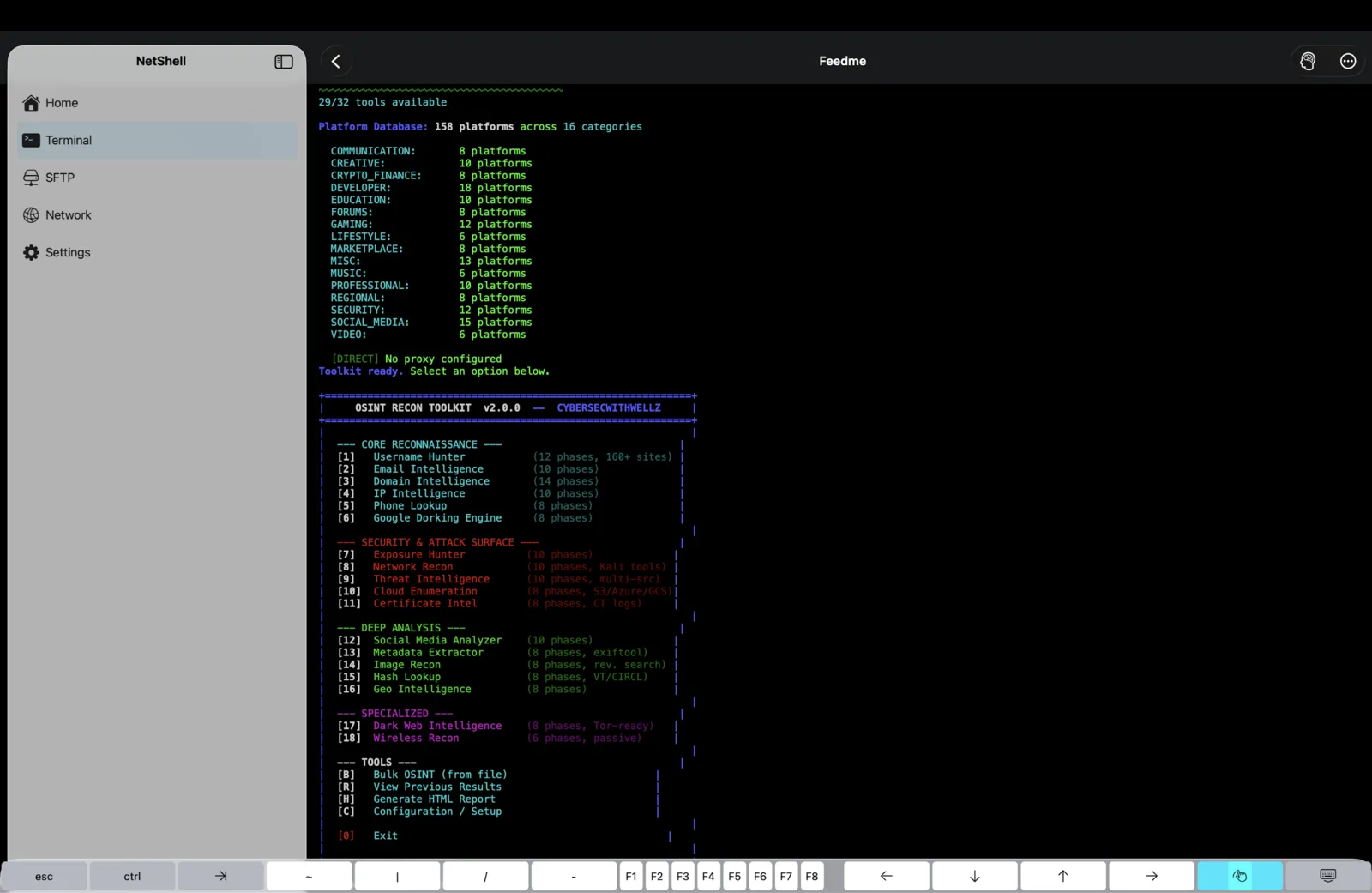
A full SSH terminal built for touch — open a session, fly through it with gestures and a special-keys bar, run several servers side by side, and pick up exactly where you left off.
Opening a session
A terminal session is a live shell on a remote machine. To start one:
- Open your connections list and tap a saved host — or create one first (see Add a connection).
- Choose SSH / Terminal as the action. NetShell authenticates with whatever the connection holds — a password, or a key from the Key Vault.
- On a brand-new host you'll be asked to confirm the server's fingerprint. NetShell fails closed: it will not send your credentials to an unknown or changed host until you approve it. See Host verification.
Once the handshake completes you land at a normal shell prompt. Everything you'd expect from a desktop terminal works — pipes, redirection, tmux, vim, htop, full-screen TUIs and colour output. NetShell speaks real SSH, so the remote side has no idea it's talking to a phone.
Running multiple sessions
NetShell keeps several SSH sessions alive at the same time. Open one server, switch back to your list, open another, and move between them without tearing anything down — long-running jobs keep going in the background while you work elsewhere.
- Switch sessions from the active-sessions switcher; each connection you've opened stays in the list until you close it.
- One host, many shells — open the same server more than once when you want, say, a tail of the logs in one and edits in another.
- Close a session when you're done to release it. Closing the app cleanly shuts sessions down so nothing is left dangling.
On iPad this pairs well with Split View and Stage Manager — keep the SFTP browser or your notes beside a live shell. On Mac, run sessions in their own windows alongside your connection list.
Gestures and touch
The terminal is tuned for fingers, not a mouse:
- Tap to place focus and bring up the keyboard.
- Swipe to scroll back through output history (the scrollback buffer).
- Pinch to zoom the font in and out on the fly — handy for reading a dense table, then zooming back out.
- Tap-and-hold to start a text selection for copy, or to reveal the context menu.
The special-keys bar
iOS keyboards have no Esc, Ctrl, Tab or arrow cluster — so NetShell adds an accessory bar above the keyboard that does. These are the keys real terminal work depends on:
- Ctrl — tap it then a letter for control sequences:
Ctrl-Cto interrupt,Ctrl-Dto send EOF,Ctrl-Zto suspend,Ctrl-Rto search shell history,Ctrl-Lto clear. - Esc — essential for
vimand other modal editors. - Tab — shell and path completion.
- Arrow keys — recall previous commands and move the cursor.
- Other glyphs — quick access to symbols like
|,~,/and-that are buried on the iOS keyboard.
Copy and paste
Move text in and out of the shell with the standard iOS interactions:
- Copy — tap-and-hold to start a selection, drag the handles to size it, then choose Copy. The text goes to the system clipboard, so it's available in every other app.
- Paste — tap-and-hold at the prompt and choose Paste to send clipboard contents into the session — a long key, a config block, a one-liner you copied from notes.
- Select all the visible output when you want to grab a whole log dump.
Pasting commands you didn't write is exactly where the destructive-command guard earns its keep — it intercepts dangerous commands such as rm -rf, DROP TABLE, TRUNCATE TABLE, git push --force, git reset --hard, shutdown/reboot, kubectl delete namespace, helm uninstall and pipe-to-bash one-liners before they ever reach the wire, so a careless paste can't quietly wipe a box.
Search and scrollback
Output piles up fast. Swipe to scroll back through the buffer, and use in-terminal search to jump straight to what you need — find a hostname in a log, an error string, or the line a build failed on, without dragging through screens of text. Remember the shell's own history search too: Ctrl-R from the special-keys bar steps back through commands you've already run.
Font size and readability
Set a comfortable default font size in the terminal settings, then pinch to zoom per session when a particular task needs bigger or denser text. Smaller fonts fit more columns — useful for wide tables and side-by-side diff output; larger fonts are easier outdoors or on a small iPhone screen. Pick one of the 16 built-in colour schemes to match your eyes and lighting — see Terminal themes.
Session restore
NetShell remembers what you had open. When you reopen the app, it can bring your sessions back so you don't have to reconnect to each server by hand — a real timesaver when you regularly work across several boxes. Note that the underlying SSH connection itself can't survive being fully severed; restore re-establishes the session to the same host rather than resurrecting a frozen-in-time shell. For sessions you truly can't afford to lose mid-task, run your work inside tmux or screen on the server so it persists independently of any client.
NetShell also auto-relocks behind Face ID after an idle period, so when you come back you may be asked to authenticate before your restored sessions appear. See Face ID lock.
Beyond the shell
A connection is more than a terminal. From the same saved host you can open the SFTP browser to move files, set up port forwarding, watch live server dashboards for CPU, memory, disk and uptime, or manage Docker containers and Compose stacks — all without leaving the app.
Troubleshooting
- Session won't open — confirm the host, port, and credentials on the connection, and that the server is reachable. The network scanner can confirm a box is up and running SSH.
- "Host fingerprint changed" warning — NetShell refuses to proceed until you confirm. This is intentional; don't accept blindly if you weren't expecting the server to be rebuilt. See Host verification.
- A command was blocked — that's the destructive-command guard. Review the line; proceed only if you're certain. See Command guard.
- Asked to unlock again — NetShell auto-relocks behind Face ID after an idle timeout. Authenticate and continue. See Face ID lock.
NetShell is an SSH client for iPhone, iPad & Mac (iOS / iPadOS 17+, and Mac) with no account and no telemetry by default. Get it on the App Store.