
Docs / Network & Monitoring
Network scanner
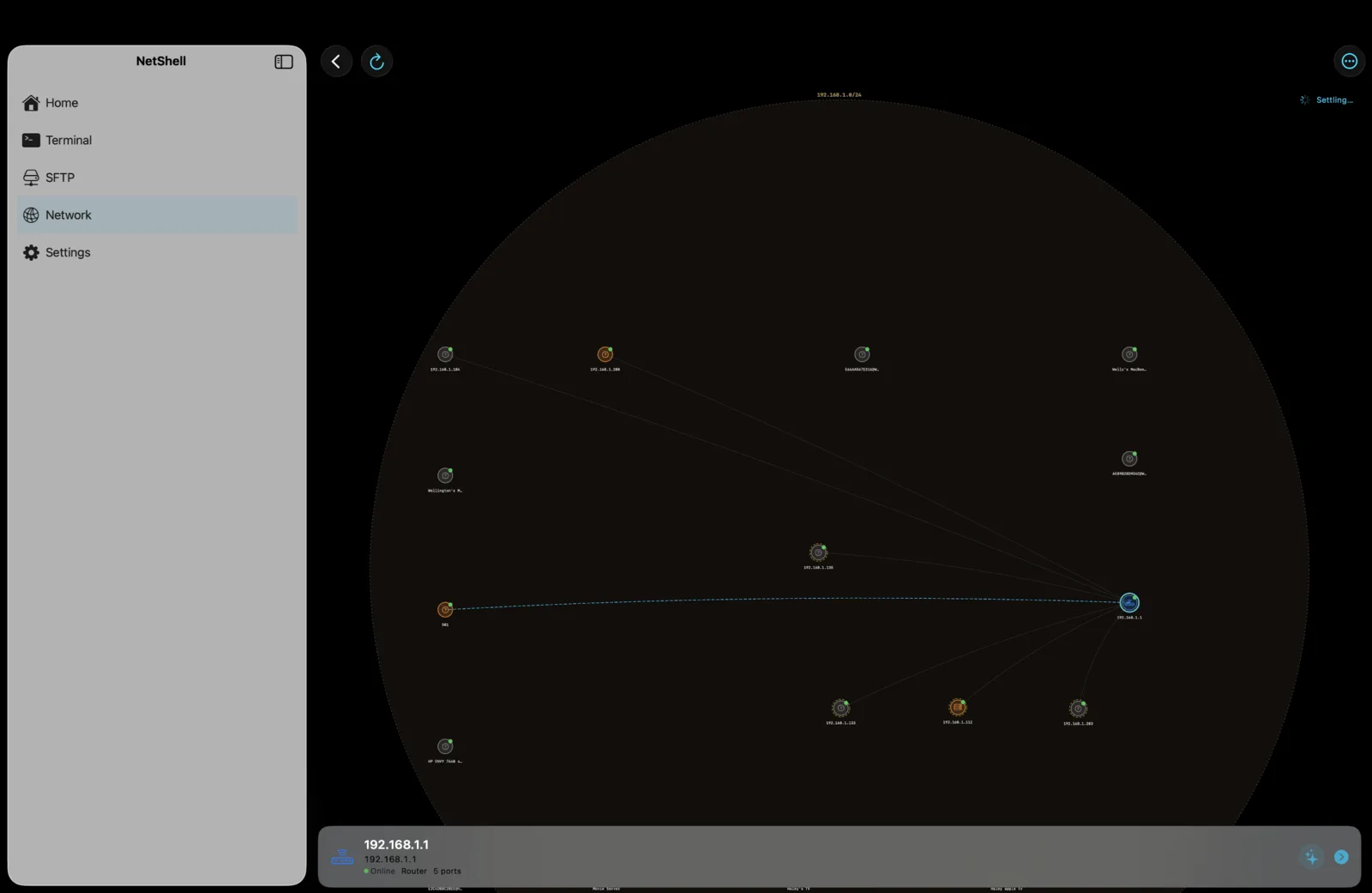
Discover every device on your local network, spot which ones are running SSH, and connect to a new server in a couple of taps.
What the network scanner does
The network scanner sweeps the network your iPhone, iPad or Mac is currently joined to and builds a live list of the devices it finds. It works two ways at once: it listens for Bonjour service announcements (the zero-configuration discovery used by Macs, NAS boxes, printers and many IoT devices), and it runs a port scan across the local subnet to catch devices that don't advertise themselves. Together those two passes give you a fuller picture than either approach alone.
Run a scan
- Make sure your device is on the same Wi-Fi or wired LAN as the machines you want to find.
- Open the Network area from the home dashboard.
- Start a scan. NetShell announces itself, collects Bonjour replies, and probes common ports across the subnet.
- Watch results appear as they're discovered — the list fills in progressively rather than all at once.
Reading the results
Each discovered device is shown with the details NetShell could gather: its IP address, a hostname or Bonjour name where one is advertised, and the open ports it responded on. Devices that answered on the SSH port are flagged so you can pick them out at a glance. Bonjour-advertised services (such as _ssh._tcp, file sharing, or printing) help label what a device actually is, so a NAS reads as a NAS rather than just an anonymous IP.
- IP & hostname — the address to connect to, plus a friendly name when one is published.
- Open ports — the services that responded during the scan.
- SSH flag — a clear marker on anything listening for SSH.
Auto-detecting SSH servers
Because the scanner specifically watches for the SSH service — both through Bonjour's _ssh._tcp advertisements and by probing the SSH port directly — it can tell you which machines on your network will accept an SSH connection. This is the fast way to inventory what you can manage: scan the LAN, and every server that speaks SSH is highlighted in the results.
Connecting from a result
When a device is flagged as an SSH server you can jump straight from the scan into setting up a connection. NetShell pre-fills the host and port from the scan result, so you only need to add your username and pick how you'll authenticate.
- Tap an SSH-flagged device in the results.
- Choose to create a connection — the host and port are filled in for you.
- Add your username and select a password or a key from the key vault.
- Connect. On a host you've never reached before, NetShell verifies the host key at handshake time and asks you to approve it.
From a result to a saved connection
A connection created from a scan result is a normal NetShell connection — you can rename it, drop it into groups and tags, attach snippets, and reach it later through jump hosts when you're off the LAN. It also syncs to your other devices via iCloud, so a server you discovered on your iPad is ready on your iPhone and Mac.
Security when connecting
Discovering a host doesn't lower your guard. The first time you connect to any device found by the scanner, NetShell performs host verification at handshake time and fails closed — your credentials are never sent to an unknown or changed host until you approve its key (trust-on-first-use). Once you're in, the destructive-command guard watches for dangerous commands. Known-hosts keys stay device-local and are not synced.
Performance & permission notes
- Local network permission. iOS asks for permission to access devices on your local network the first time you scan. If you declined, grant it under Settings → NetShell → Local Network, or scans will come back empty.
- Same network required. The scanner only sees the subnet you're joined to. Cellular-only, or a Wi-Fi network that isolates clients (common on guest and public hotspots), will hide devices from you.
- Scope and timing. A port scan across a subnet takes a little time and works in batches to stay light on memory and battery — results stream in as they arrive rather than blocking on the whole sweep.
- Firewalls. A device that's online but firewalled may not answer probes and can be missed; conversely, a server that advertises over Bonjour will still surface even if some ports are closed.
- Re-scan after changes. Devices that join the network after a scan finishes won't appear until you run another scan.
Beyond discovery
Once you've found and connected to a server, NetShell can keep an eye on it: turn on server dashboards for CPU, memory, disk and uptime with custom alerts. For nearby hardware that isn't on the IP network, the Bluetooth scanner does the equivalent job over Bluetooth, with live device classification and CVE lookup.
Where to next
If you already know a server's address, you can skip the scan and add a connection by hand, or import hosts from an existing SSH config. NetShell is an SSH client for iPhone, iPad & Mac with no account and no telemetry by default — get it on the App Store.